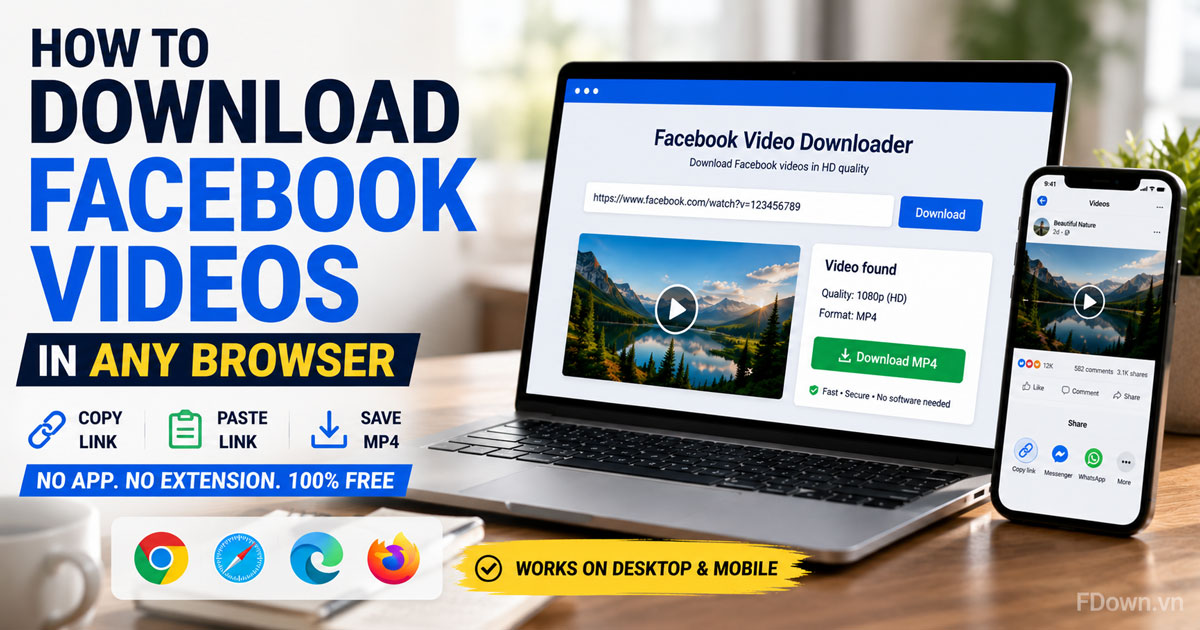
You can download Facebook videos in any browser without an app or extension by copying the video link, pasting it into an online Facebook video downloader, and clicking Download. Specifically, the whole process takes three steps and about ten seconds, and it works the same way on every modern browser because the tool runs on a web page, not on your device. More importantly, you never install anything, never log in to Facebook through a third party, and end up with a clean MP4 file.
Chrome, Edge, Safari and Firefox on desktop, plus Chrome and Safari on Android and iPhone, can all download Facebook videos without an extension.In addition, the copy and paste workflow does not change from one browser to another; the only differences are the download prompt each browser shows and the way Safari handles video files. Below, you will find a short note for each browser so you know exactly what to expect.
After downloading in your browser, the Facebook video is saved to the default Downloads folder on Windows and macOS, and to Downloads or the Gallery on Android. However, iPhone users need one extra tap to move the file from the Files app into Photos. For example, pressing Ctrl+J in Chrome or Cmd+Option+L in Safari opens the download list so you can locate the file instantly.
Besides the how-to, many people ask whether a browser-based downloader is safe and how it compares with an extension or an app.Next, this guide answers those questions after the main walkthrough, including the safety signals to look for and the reason private videos cannot be saved. Let's start with the most basic question: does this method really work without installing anything?
Can you download Facebook videos in your browser without an app or extension?
Yes, you can download Facebook videos in your browser without an app or extension, for three reasons: the video file already exists as a public MP4 on Facebook's servers, an online downloader can read that file from the link, and your browser can save any file it is handed.
To understand why no installation is needed, let's look at what actually happens when you paste a link.
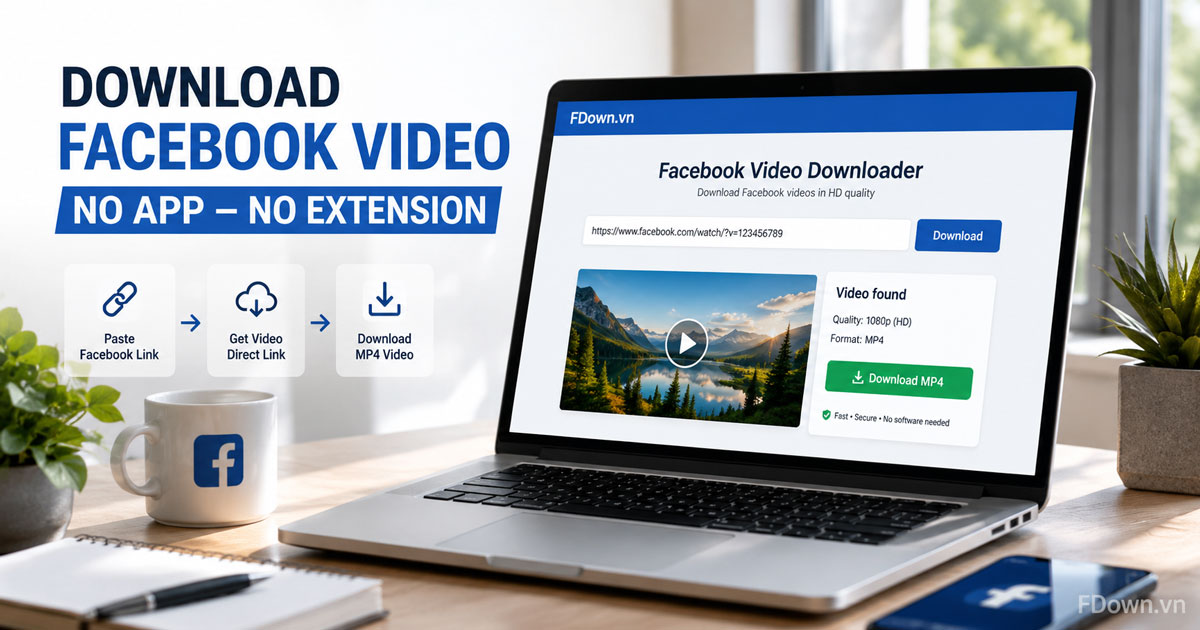
When you paste a Facebook link into a Facebook video downloader, the tool sends a request to Facebook, finds the direct address of the MP4 file behind the post, and returns that address to you as a download button. Your browser then treats the file exactly like a PDF or an image you download from any website: it asks the server for the file, receives it, and writes it to your disk. Nothing in that chain requires new software, because every part of the job is done either by the web tool or by a feature every browser already has.
This is also why the method is browser independent. Chrome, Safari, Edge and Firefox all know how to open a web page, paste text into a form, and save a file. The downloader does the Facebook-specific work on its own server, so your browser only needs to do the generic part. As a result, the same three steps work on a Windows laptop, a MacBook, an Android phone and an iPad.
The one real limitation is visibility. The tool can only fetch what Facebook serves publicly, so the video must be public or at least visible to anyone with the link. That constraint is explained in the last section of this article. For now, the practical takeaway is simple: if you can watch the video while logged out of Facebook, you can download it in your browser.
What do you need before you start?
You need three things before you start: a public Facebook video, an up to date browser, and an online downloader page open in a tab. You do not need a Facebook account, a login on the downloader, or any file on your device.
In detail, here is what each requirement means:
- A public Facebook video: a normal post, a Watch video, a Reel or a public Story. Videos inside closed groups, friends-only posts or private profiles will not work.
- An up to date browser: any version of Chrome, Edge, Safari or Firefox released in the last two or three years. Older browsers may block downloads from HTTPS pages or fail to show the save prompt.
- A downloader page: keep the Facebook video downloader open in a second tab so you can switch between Facebook and the tool without losing your place.
Because there is no login step, the tool never sees your Facebook password or session. You paste a public URL, and that URL is the only piece of information the tool needs.
How do you download a Facebook video by copying and pasting the link?
You download a Facebook video by copying its link, pasting the link into the downloader's input box, then choosing a quality and clicking Download. Three steps, no installation, and the MP4 file lands in your browser's download folder.
Let's go through each step, with the details that trip people up most often.
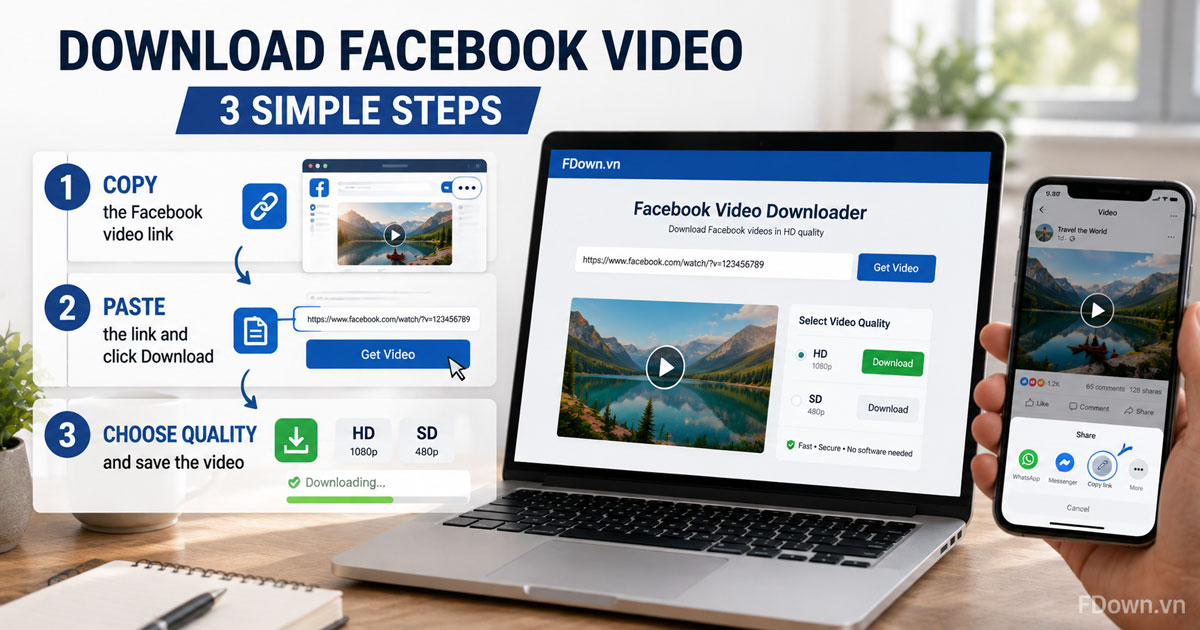
Step 1: Copy the video link. Open the video on Facebook and grab its URL. On a computer you can copy it from the address bar or from the three dot menu on the post. On a phone you use the Share button and tap Copy link. The next section explains both paths in detail.
Step 2: Paste the link into the downloader. Switch to the tab with the downloader, click inside the input box, and paste with Ctrl+V (Windows) or Cmd+V (Mac). On a phone, long press the box and tap Paste. Then press the Download or Get video button. The tool takes a few seconds to read the original file from Facebook.
Step 3: Choose the quality and save. The tool shows one or more download options, usually labelled HD and SD. Click the one you want. Your browser starts the download immediately, or shows a small dialog asking where to save the file. Once the progress bar finishes, the video is on your device as an MP4.
A few notes that save time:
- The process is identical for regular videos, Watch videos and Reels. The URL may contain /videos/, /watch/ or /reel/, and the tool handles all three.
- If the tool says the media is unavailable, the video is probably private or was deleted. Check that it plays while you are logged out, then copy a fresh link.
- Facebook updates its page structure often. If a downloader stops working for a day, that is usually the cause, and a well maintained tool fixes it quickly.
How do you copy the Facebook video link on desktop and mobile?
You copy the Facebook video link in two ways: on desktop, use the three dot menu on the post or the address bar; on mobile, tap Share and choose Copy link. Both give you a URL the downloader can read.
Specifically, here is where to look on each platform.
On desktop (Chrome, Edge, Safari, Firefox):
- Click the video so it opens in its own page or in the theater view.
- Look at the address bar. If it contains facebook.com/watch, /videos/ or /reel/, select the whole address and copy it with Ctrl+C or Cmd+C.
- Alternatively, click the three dots at the top right of the post and choose Copy link. This works even on videos inside a feed.
On mobile (Facebook app, Chrome, Safari):
- Find the video in your feed or on a Page.
- Tap the Share button under the video.
- Tap Copy link. Facebook confirms with a short toast message.
Short links that start with fb.watch work too. The downloader follows the redirect and reaches the full video page on its own. You do not need to open the short link first.
Should you choose HD or SD when downloading?
Choose HD (720p or 1080p) when you plan to keep, edit or share the video, and choose SD when you are on a slow connection or short on storage. HD gives the best picture; SD gives the smallest file.
To compare the two options quickly, the table below lists what each one is best for:
| Option | Typical resolution | File size for a 1 minute video | Best for |
|---|---|---|---|
| HD | 720p to 1080p | 15 to 40 MB | Archiving, editing, sharing on other platforms |
| SD | 360p to 480p | 4 to 10 MB | Mobile data, quick previews, limited storage |
Two details are worth knowing. First, Facebook often serves 1080p video and audio as separate streams. A good downloader merges them so your 1080p file has sound; if a tool gives you a silent 1080p file, use a different one or fall back to 720p. Second, if you only see an SD option, the original upload was SD. No tool can add resolution that Facebook does not have.
Which browsers can download Facebook videos without an extension?
Every modern browser can download Facebook videos without an extension, including Chrome, Edge, Safari and Firefox on desktop, and Chrome and Safari on Android and iPhone. The steps are the same; only the download prompt and the save location differ slightly.
Below, each browser gets a short note covering the one thing that behaves differently.
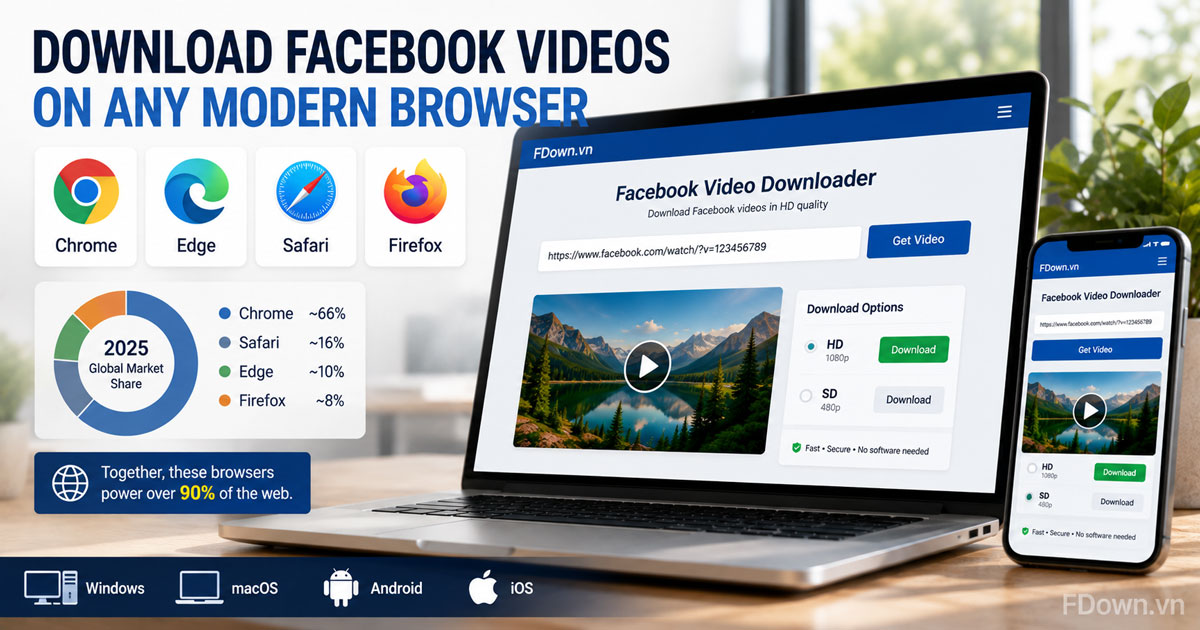
According to StatCounter's global browser statistics for 2025, Chrome holds roughly two thirds of the market, Safari around one sixth, and Edge and Firefox share most of the remainder. That spread is why this guide covers all four: together they account for well over 90 percent of the people who reach a downloader page.
How does it work on Chrome and Edge (Windows, macOS)?
Chrome and Edge download Facebook videos the same way because both run on the Chromium engine: click the download button on the tool and the file appears in the download bubble at the top right of the window.
In practice, this is the smoothest experience of the four browsers. The download starts silently, the bubble shows a progress ring, and clicking it reveals the finished file. You can drag the video straight from the bubble to your desktop or into a folder.
One setting changes this behaviour. If you have turned on "Ask where to save each file before downloading" in Settings, Chrome or Edge will open a save dialog instead of downloading automatically. That dialog is not an error; choose a folder and click Save. You can turn the option off later if you prefer one click downloads.
How does it work on Safari (macOS)?
Safari on macOS may open the MP4 in a new tab and start playing it instead of saving it. To download the file, right click the download button on the tool and choose Download Linked File.
The reason is that Safari treats direct video links as media it can play, so a plain click sends the file to the built in player. Download Linked File forces Safari to save it instead. The file goes to the Downloads folder, and the download icon at the top right of the Safari toolbar shows the progress.
If you use Safari on an iPhone or iPad, the behaviour is similar but the steps are touch based. The dedicated guide on how to download Facebook videos on iPhone walks through that version in detail, including how to move the file into Photos.
How does it work on Firefox?
Firefox downloads Facebook videos after showing a small dialog that asks what to do with the file. Choose Save File, click OK, and the MP4 goes to the Downloads folder.
By default, Firefox has moved most file types to automatic download in recent versions, so many users will not see the dialog at all. If it does appear, you can tick "Do this automatically for files like this from now on" to skip it in future. The downloads panel opens automatically when the file starts, and the arrow icon on the toolbar stays highlighted until you open it.
Does it work in a mobile browser on Android and iPhone?
Yes, a mobile browser on Android and iPhone can download Facebook videos without an app, because the downloader is a web page and both Chrome for Android and Safari for iOS can save files.
On Android, the experience matches desktop Chrome: tap the download button, watch the notification, and find the video in Downloads or in your Gallery app. Most Android phones index new MP4 files automatically so the video shows up in the Gallery within a few seconds.
On iPhone, Safari saves the file to the Files app rather than to Photos. You tap and hold the download button, choose Download Linked File, open the Files app, then use Share and Save Video to send it to your camera roll. Because that flow has a few more taps, it is covered step by step in the iPhone Facebook video download guide rather than repeated here.
Where is the Facebook video saved after downloading in your browser?
The Facebook video is saved to your browser's default download folder: C:\Users<your name>\Downloads on Windows and ~/Downloads on macOS. On a phone it goes to the Downloads folder on Android or to the Files app on iPhone.
To find the file in seconds, use the download list shortcut for your browser.
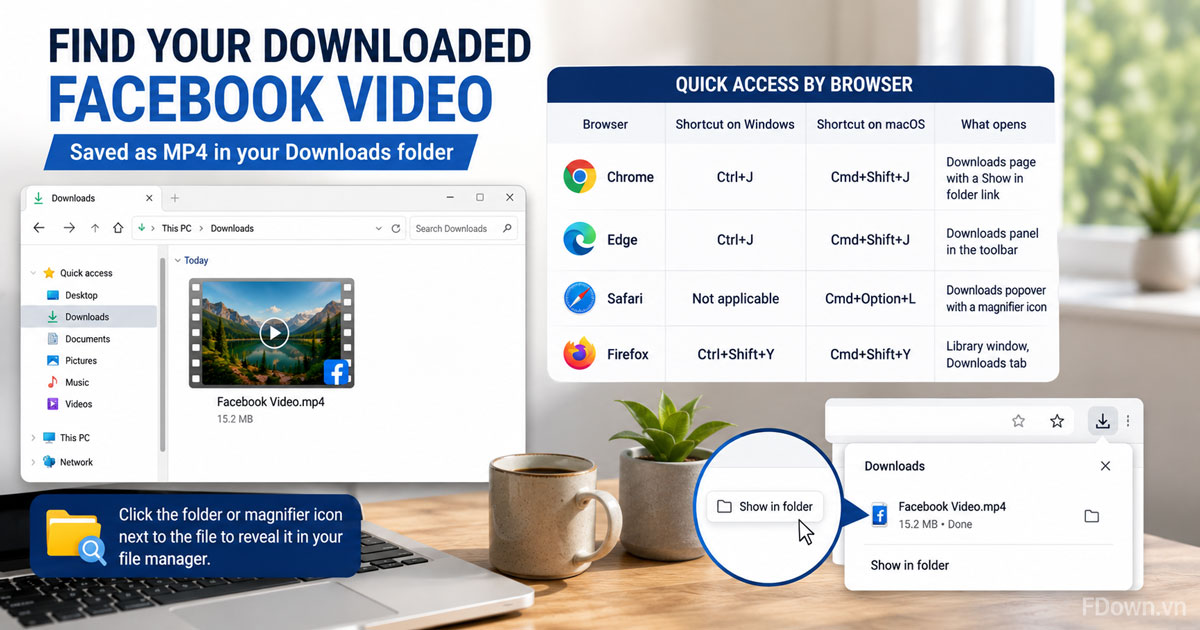
The table below lists the keyboard shortcut that opens the download history in each desktop browser, so you can jump to the video without opening File Explorer or Finder:
| Browser | Shortcut on Windows | Shortcut on macOS | What opens |
|---|---|---|---|
| Chrome | Ctrl+J | Cmd+Shift+J | Downloads page with a Show in folder link |
| Edge | Ctrl+J | Cmd+Shift+J | Downloads panel in the toolbar |
| Safari | Not applicable | Cmd+Option+L | Downloads popover with a magnifier icon |
| Firefox | Ctrl+Shift+Y | Cmd+Shift+Y | Library window, Downloads tab |
Clicking the folder or magnifier icon next to the file highlights it in your file manager, which is the fastest way to move or rename it.
Where does the file go on desktop and how do you change the save location?
On desktop, the file goes to the Downloads folder unless you change the location in your browser's settings. Each browser lets you pick a different folder or ask before every download.
Here is where the setting lives in each browser:
- Chrome and Edge: open Settings, choose Downloads, then click Change next to Location. Toggle "Ask where to save each file" if you want a prompt every time.
- Safari: open Safari Settings, go to the General tab, and use the "File download location" menu. You can pick Downloads, Desktop, Other or Ask for each download.
- Firefox: open Settings, scroll to the Downloads section under General, and either browse to a new folder or tick "Always ask you where to save files".
Changing the location is useful if you download many videos and want them in a dedicated folder rather than mixed with everything else in Downloads.
Where does the file go on a phone?
On a phone, the file goes to the Downloads folder or Gallery on Android, and to Files then Photos on iPhone after you save it with the Share menu.
Specifically:
- Android: open the Files app or Google Files, tap Downloads, and the MP4 is at the top of the list. Most Gallery apps also show it under Videos or Recent.
- iPhone: open the Files app, tap Browse, choose On My iPhone or iCloud Drive, then Downloads. Tap the video, tap Share, then Save Video to put it in Photos.
The file name is usually a long string of numbers taken from the Facebook video ID. Rename it right away while you still remember what the video is, because a folder full of numeric names is hard to search later.
With the video downloaded and located, the practical part of the guide is complete. Beyond that, two questions come up in almost every comment section: is a browser downloader actually safe, and why does it refuse some videos? The rest of the article covers both.
Is a browser-based Facebook video downloader safe to use?
Yes, a browser-based Facebook video downloader is safe to use when it runs over HTTPS, never asks for your Facebook login, and returns a plain MP4 file rather than an installer. Those three signals separate a safe web tool from a risky one.
The core reason it is safer than installed software is that nothing runs on your device. An extension can read every page you visit, and an app can request storage, notification or accessibility permissions. A web page in a tab has none of that access; it receives a URL, returns a file, and is gone when you close the tab. Safe versus unsafe, in this context, largely comes down to installed versus not installed.
To check a tool before you trust it, look for these signs:
- The address starts with https:// and the browser shows a padlock.
- The tool never asks you to log in to Facebook or to enter any password.
- The download is a .mp4 file, not .exe, .apk, .dmg or a zip archive.
- Clicking Download does not open new tabs, redirect you to another site or trigger a "your device is infected" warning.
- The site states that it does not store your files or links on its server.
On the legal side, downloading a public video for personal offline viewing does not break Facebook's terms in a way that affects an ordinary user. Reposting someone else's video as your own without permission is where copyright problems begin, so keep saved videos for personal use unless you have the creator's consent.
How is a browser downloader different from an extension or a downloader app?
A browser downloader wins on safety and device coverage, an extension wins on convenience, and an app wins on batch downloads. The table below compares the three on the criteria that matter most to a regular user:
| Criteria | Browser downloader | Chrome extension | Downloader app |
|---|---|---|---|
| Installation | None | Install from a store | Install APK or app |
| Devices | Any browser, any OS | Desktop Chromium browsers only | One platform per app |
| Permissions needed | None | Read and change data on facebook.com | Storage, sometimes more |
| Extra taps per download | Copy and paste the link | One click on the video | Open app and paste |
| Batch downloads | No | Sometimes | Yes |
| Risk of being pulled or blocked | Low | Extensions get removed from the store regularly | APK sources vary in quality |
If you download a video a few times a week, the browser tool is the simplest and safest option. If you download dozens a day on a desktop, the extension guide explains what you gain and what permissions you give up. Mobile users comparing an app with Safari can read the iPhone guide for that trade off.
Why can't a browser downloader save private Facebook videos?
A browser downloader cannot save private Facebook videos because it only fetches files that Facebook serves to the public, and a private video is never served to anyone outside the audience the owner chose.
In practice, videos in closed groups, friends-only posts, private profiles or a friend's Story return an error such as "Media not available" or "Video is private". The tool has no access to your logged-in session, so it sees exactly what a logged-out visitor sees, which is nothing.
The correct fixes are simple. If the video is yours, change its privacy to Public temporarily, download it, then switch it back. If the video belongs to someone else, ask the owner for the original file or ask them to make the post public. Tools that promise to bypass privacy settings either do not work or require your Facebook credentials, which is exactly the risk this guide tells you to avoid.