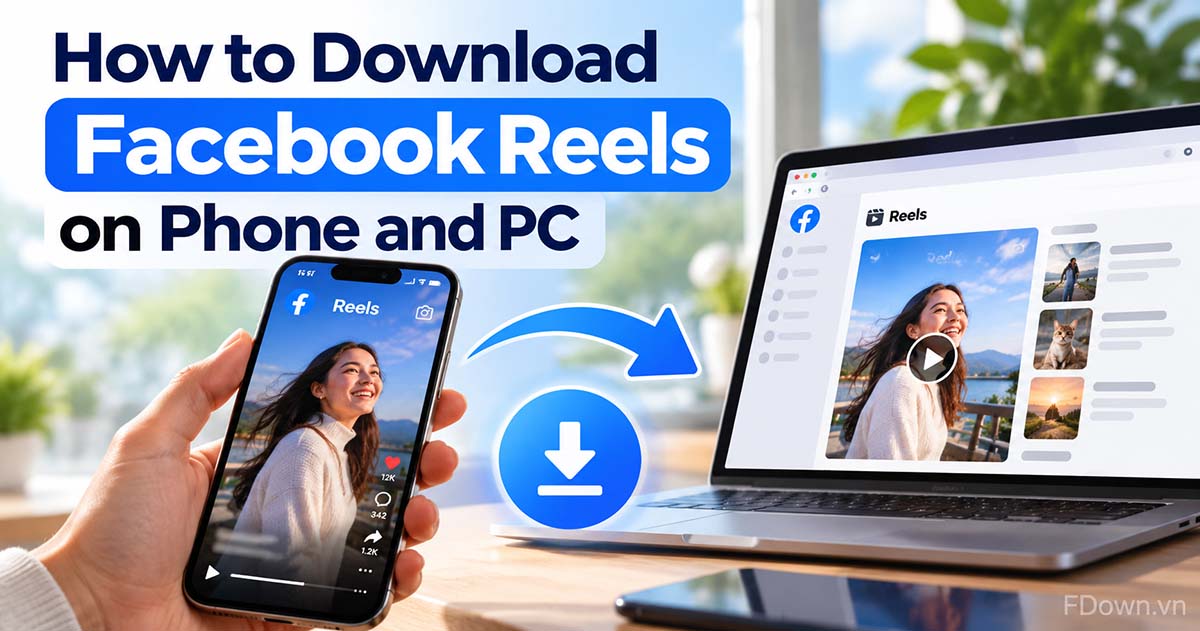
To download Facebook Reels, copy the link of the reel, paste it into a Facebook Reels downloader in your browser, then pick a quality and tap Download to save it as an MP4 file. The same 3 steps work on Android, iPhone, tablets and computers.
Specifically, the link method needs no app and no Facebook login. You open the Facebook Reels downloader, paste the reel link into the box, and choose from the qualities the original reel offers, such as 720p, 1080p or an audio-only file.
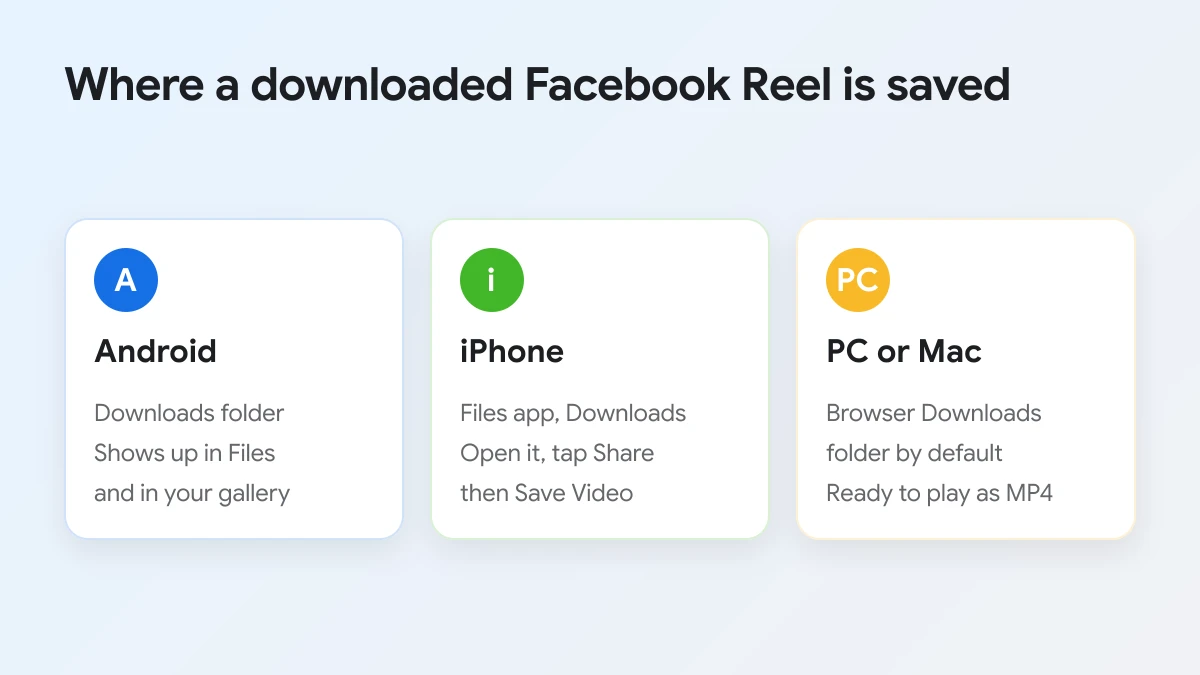
On a phone, the only difference is where the file lands. Android saves the reel in the Downloads folder, iPhone saves it in the Files app, and a PC or Mac saves it in the browser's Downloads folder, ready to play as an MP4.
Below, you will see each step in detail, then how the steps change on Android, iPhone and computer. After that, the guide covers the built-in Download option Facebook offers for your own reels and explains which reels can be downloaded at all, so you know before you start whether a reel will work.
How do you download Facebook Reels?
You download Facebook Reels with the link method: copy the reel link, paste it into a Reels downloader and choose a quality, which saves the reel to your device as an MP4 video file in a few seconds.
To start, the whole process fits in 3 short steps, and each one takes only a few taps. The picture below sums them up before the detailed explanation of every step.
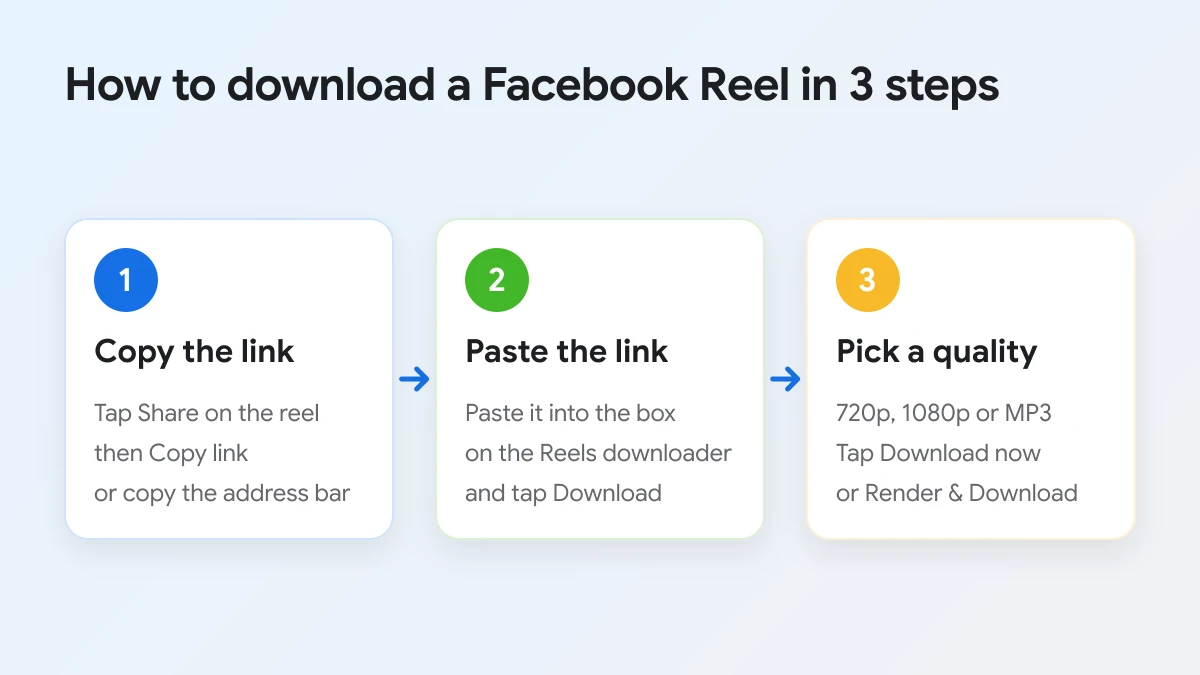
The link is the key part of the process. A downloader cannot search Facebook for you, so it needs the exact address of the reel to find the video file behind it. Once it has that address, it reads the reel the same way a browser does when someone opens a public post, and it lists every quality that the original upload contains.
Step 1: Copy the link of the reel
You copy the link of a reel by tapping Share on the reel and choosing Copy link in the Facebook app, or by copying the full address from the address bar when you watch the reel in a browser.
In detail, the place to find the link depends on where you watch the reel:
- Facebook app on Android or iPhone: open the reel, tap the Share button on the right side, then tap Copy link. The link is now on your clipboard.
- Mobile browser: open the reel on facebook.com, tap the address bar at the top and copy the whole address.
- Computer: open the reel on facebook.com, click the address bar and press Ctrl+C on Windows or Cmd+C on Mac.
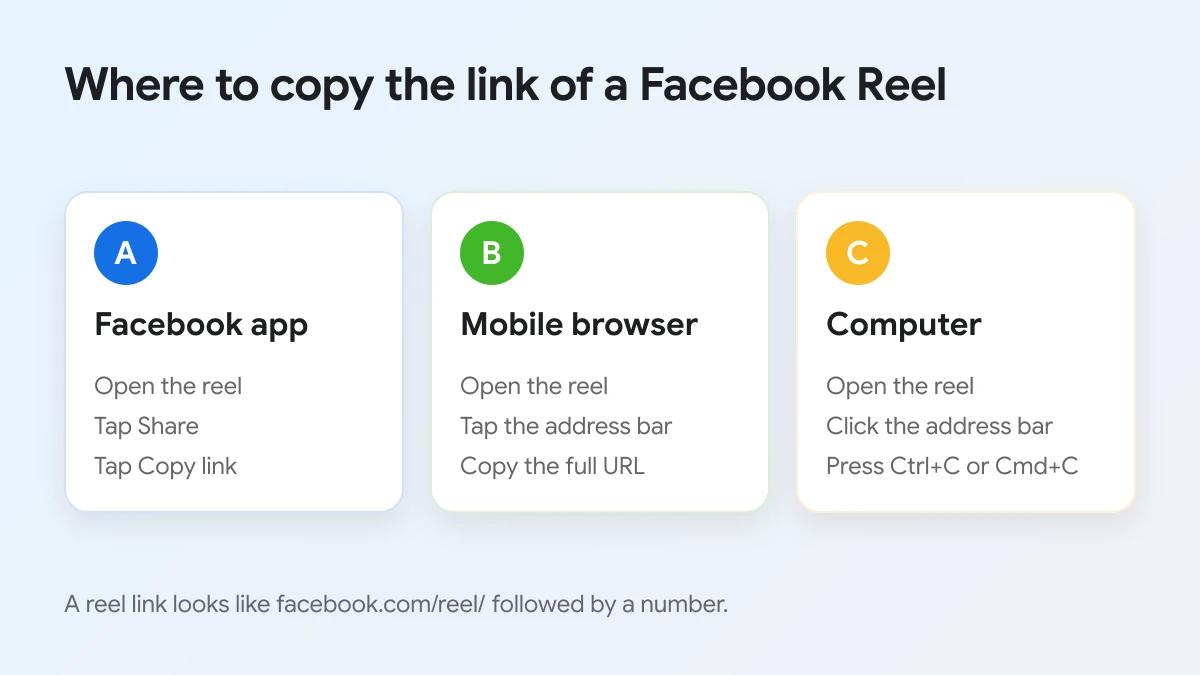
A reel link usually looks like facebook.com/reel/ followed by a long number. Short share links that open the same reel also work, because the downloader follows them to the reel itself. If the copied text contains extra words, such as a caption, delete them so only the link stays.
Step 2: Paste the link into the downloader
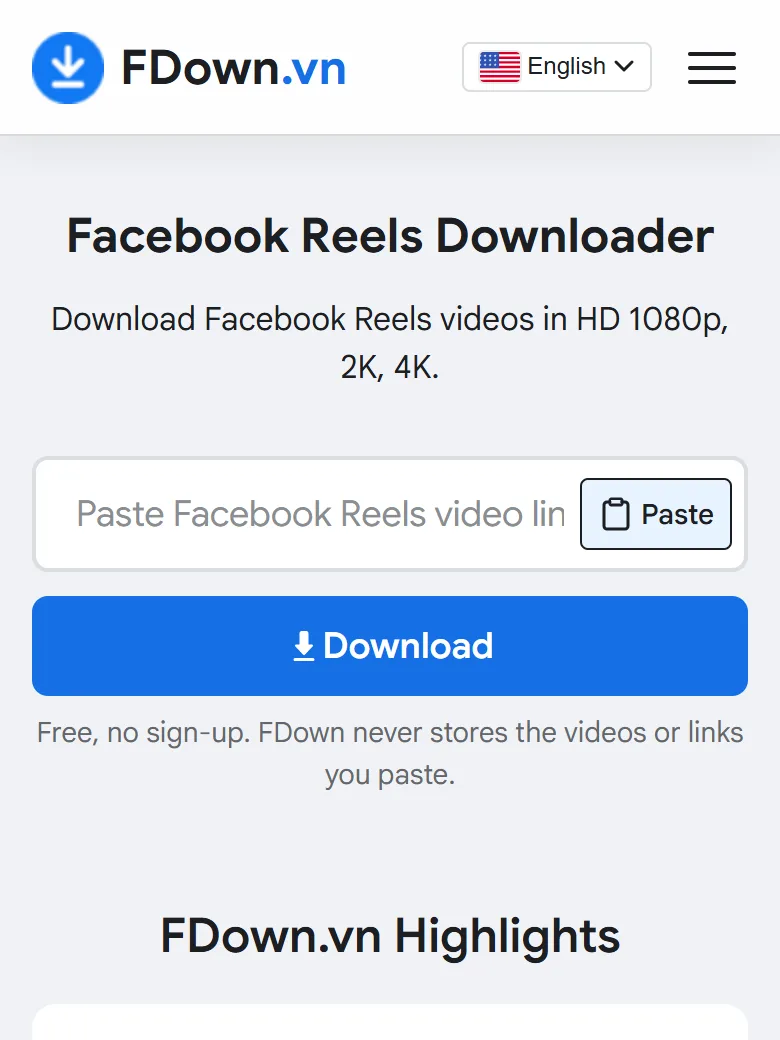
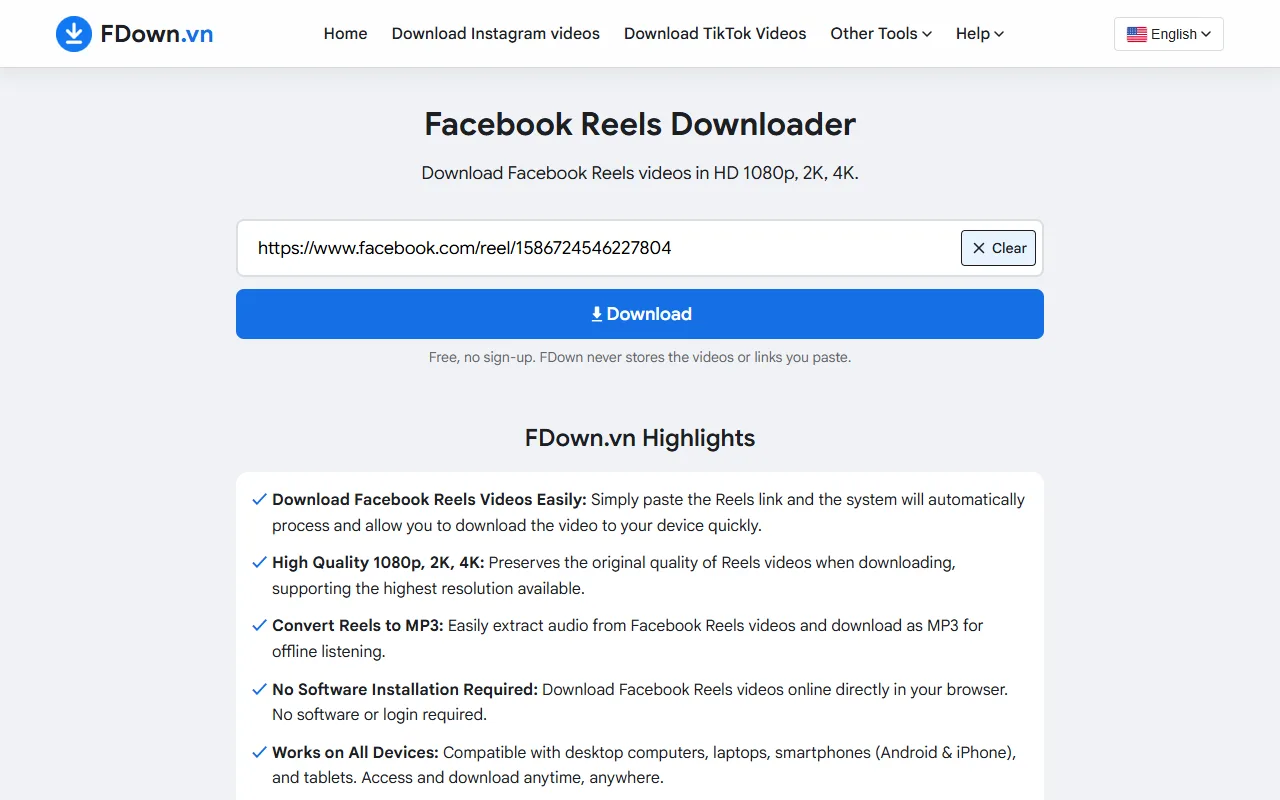
You paste the link into the box that says "Paste Facebook Reels video link here..." on the Reels downloader page, then tap the blue Download button to let the tool read the reel.
On a phone, the fastest way is the Paste button inside the box, which drops the copied link in with one tap. On a computer, click the box and press Ctrl+V or Cmd+V. If you pasted the wrong link, the Clear button empties the box so you can paste again.
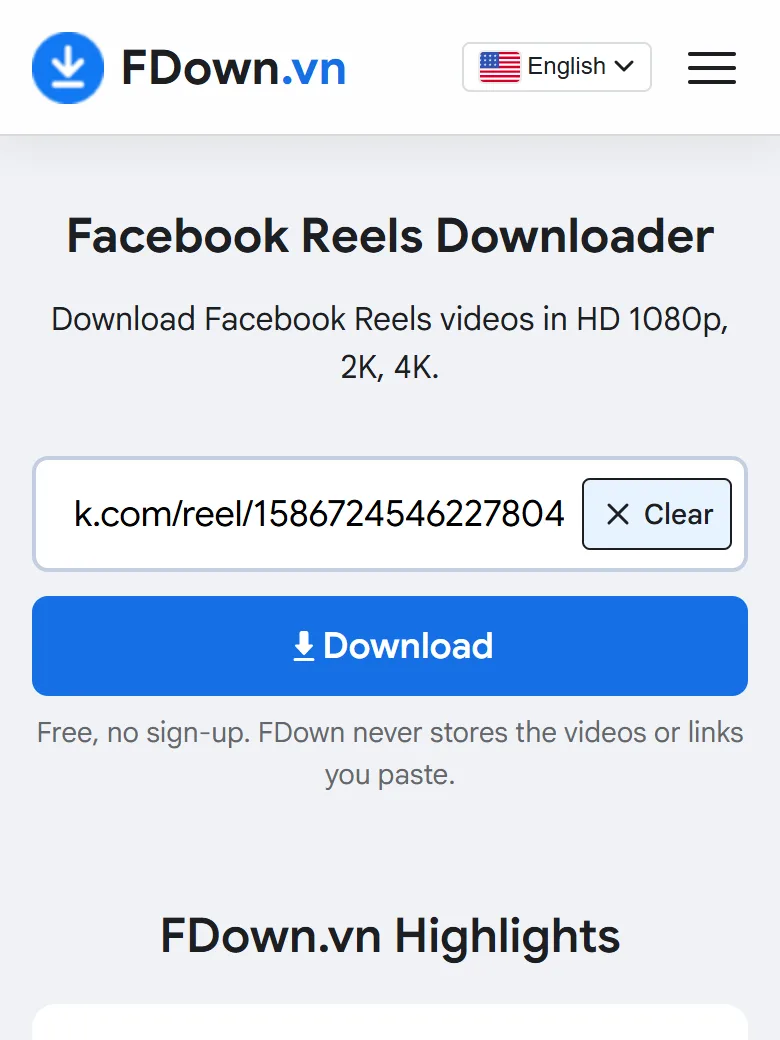
After you tap Download, the tool needs a moment to find the reel. When it is ready, a result card appears below the box with the reel's preview, its length and the list of qualities you can save.
If an error message appears instead of a result card, check three things before trying again:
- The link is complete: it should start with https:// followed by facebook.com or fb.watch, with nothing missing at the end.
- The reel is public: a reel shared only with friends cannot be read from its link.
- Your connection works: a weak signal can stop the page before the result loads.
When all three look fine and the reel still does not load, you can write to contact@fdown.vn with the link so the team can check it.
Step 3: Choose the quality and save the reel
You save the reel by tapping the button next to the quality you want: usually Download now for 720p (HD) or 360p (SD), and Render & Download for 1080p and other qualities that need extra processing.
To explain the two buttons, Facebook stores some qualities as one ready file and others as separate video and sound parts. The result card notes that FHD, 2K and 4K videos require rendering, which means merging video and audio, so those qualities take a little longer before the download starts.
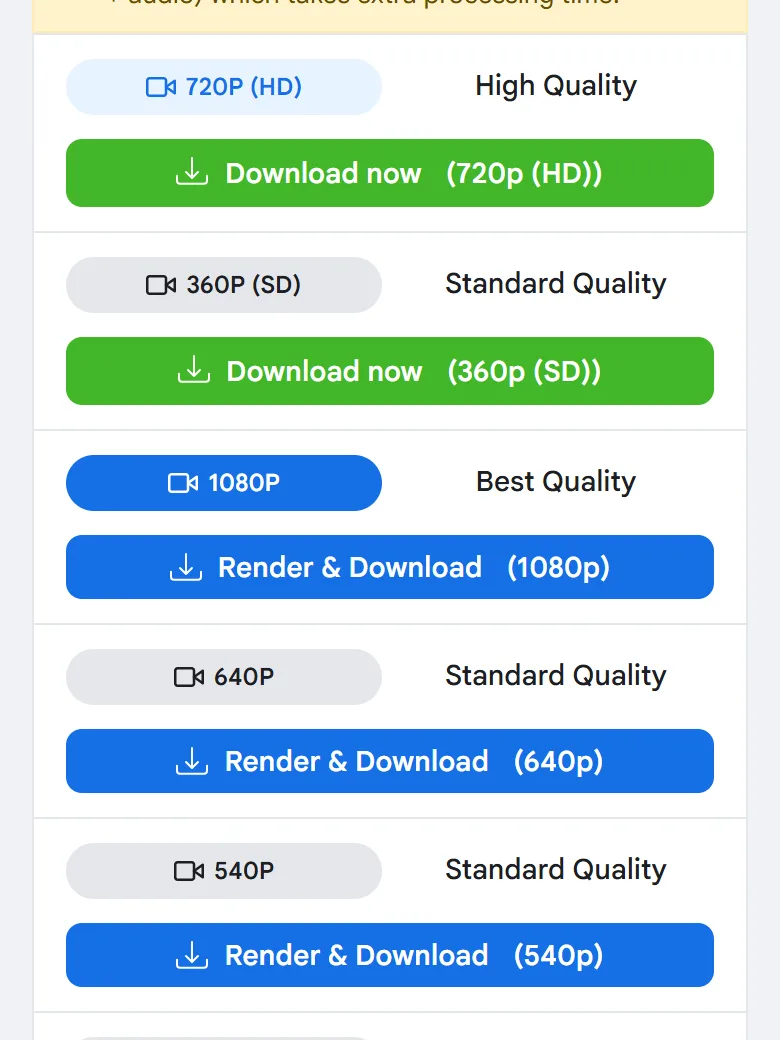
The list only shows qualities the original reel has. A reel filmed and uploaded in 1080p, 2K or 4K can be saved in that quality, while a reel uploaded in lower quality cannot be made sharper by any downloader. As a quick guide:
- 720p (HD): the best everyday choice for watching on a phone, and it starts right away.
- 1080p or higher: the sharpest picture for a big screen or editing, after a short render.
- 360p (SD): the smallest file when your storage or data is limited.
- MP3: only the sound of the reel, covered later in this guide.
Can you download Facebook Reels without an app?
Yes, you can download Facebook Reels without an app, because the Reels downloader runs in any browser, needs no Facebook login and asks you to install nothing, so it works on phones, tablets and computers alike.
In other words, the browser you already use is enough. The downloader page works in Chrome, Safari, Edge and Firefox, and the page itself states that the tool is free, needs no sign-up and never stores the videos or links you paste.
There are three practical reasons to stay with the browser:
- No storage used by another app: nothing is installed, so the only thing saved on your phone is the reel itself.
- No account to share: you never type your Facebook password into the downloader, which keeps your account separate from the tool.
- Same steps everywhere: the method you learn on your phone works the same way on a laptop.
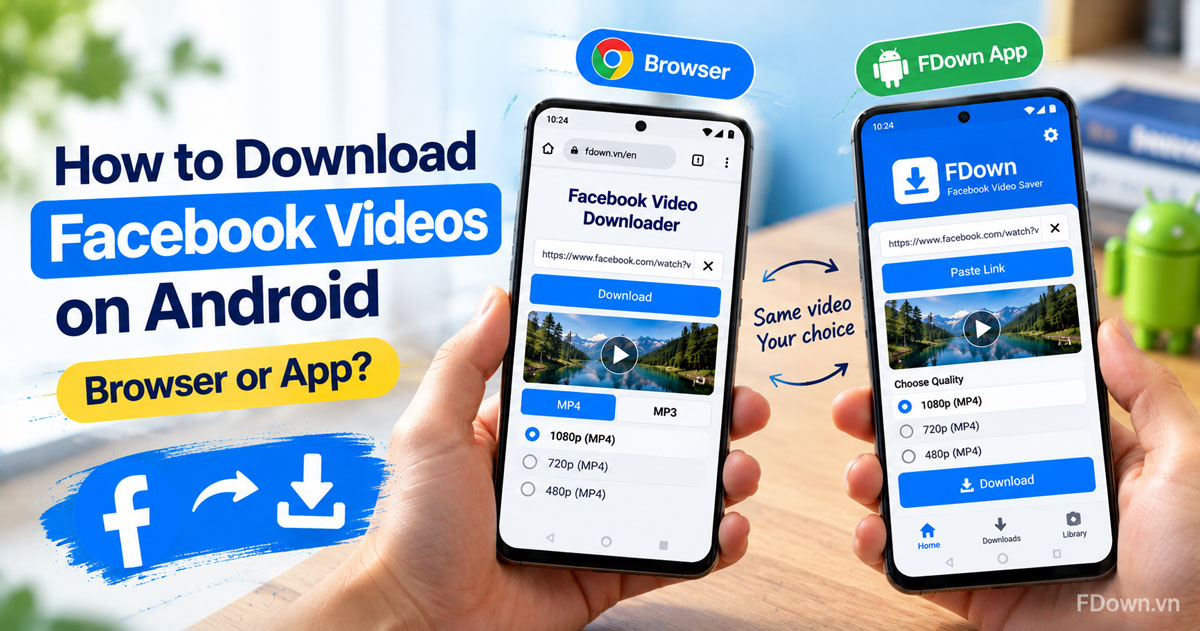
That said, Android users who save reels often may prefer an app that skips the browser. The FDown app for Android lets you paste a link and download inside the app. To weigh the two options, read the Android guide that compares the browser and the FDown app. The web version keeps every feature, so the app stays optional.
How do you download Facebook Reels on Android and iPhone?
You download Facebook Reels on Android and iPhone with the same 3 browser steps: copy the link, paste it and pick a quality. The difference is where the phone saves the MP4 file and how you move it into your gallery.
Next, the two sections below explain what happens after you tap the download button on each phone. The picture shows the default saving place on Android, iPhone and computer.
On Android
On Android, open the Reels downloader in Chrome or another browser, paste the reel link and tap Download now or Render & Download. The reel is saved as an MP4 file in the Downloads folder of your phone.
To be more specific, Chrome shows a small bar at the bottom when the file finishes, and you can tap Open to watch the reel right away. Later, you find it in the Files app under Downloads. Most gallery apps also show videos from the Downloads folder, so the reel often appears there without any extra step.
If the reel does not show up in your gallery, the file is still in Downloads. You can move a downloaded video into your gallery or camera roll with a few taps in the Files app.
On iPhone
On iPhone, use Safari or Chrome to paste the reel link and start the download. The reel is saved in the Files app, and you add it to your camera roll by opening the file, tapping Share and choosing Save Video.
In detail, Safari asks whether you want to download the file. Tap Download, then tap the blue arrow icon in the address bar to see your downloads. The file sits in Files under the Downloads folder. Open it, tap the Share icon and choose Save Video, and the reel appears in the Photos app next to the pictures you took with your camera.
Chrome on iPhone works too. The download prompt looks a little different, but you still end up with the reel in the Files app, and the same Share and Save Video steps move it into Photos.
Keep in mind that Files and Photos are two separate places on iPhone. A reel in Files plays fine, but it will not show in Photos until you save it there, which is why the last step matters if you want to share the reel from your camera roll.
How do you download Facebook Reels on a PC or Mac?
You download Facebook Reels on a PC or Mac by copying the reel's address from the browser, pasting it into the Reels downloader and clicking a quality, which saves the MP4 file into the browser's Downloads folder.
On a computer, Facebook often opens reels in a large player with the address shown at the top. Click the address bar, copy the whole link and open the downloader in a new tab. The steps on the page are the same as on a phone, only the screen is wider.
After you click a quality, the browser starts the download:
- Chrome and Edge show the file in the downloads panel at the top right, and the file is stored in the Downloads folder by default.
- Safari on Mac stores the file in Downloads and shows it under the arrow icon in the toolbar.
- Firefox shows a downloads arrow in the toolbar, with the file in Downloads unless you picked another folder.
On a computer, the larger screen makes it easy to compare qualities. If you plan to watch the reel on a monitor or a TV, 1080p gives a clearly sharper picture than 720p, and the short render time is worth the wait. The MP4 file plays in the default video player on Windows and Mac, so you do not need any extra software to open it.
Can you download your own Facebook Reels without a downloader?
Yes, you can download your own Facebook Reels without a downloader, because the Facebook app has a Download option in the reel's menu, but it only covers reels you created and the audio of some reels may not be included.
To understand the difference, Facebook treats your own reels and other people's reels in different ways. According to the Facebook Help Center, you can download reels you shared to your device from the Facebook app on iPhone and Android, while the feature is not available on computers.
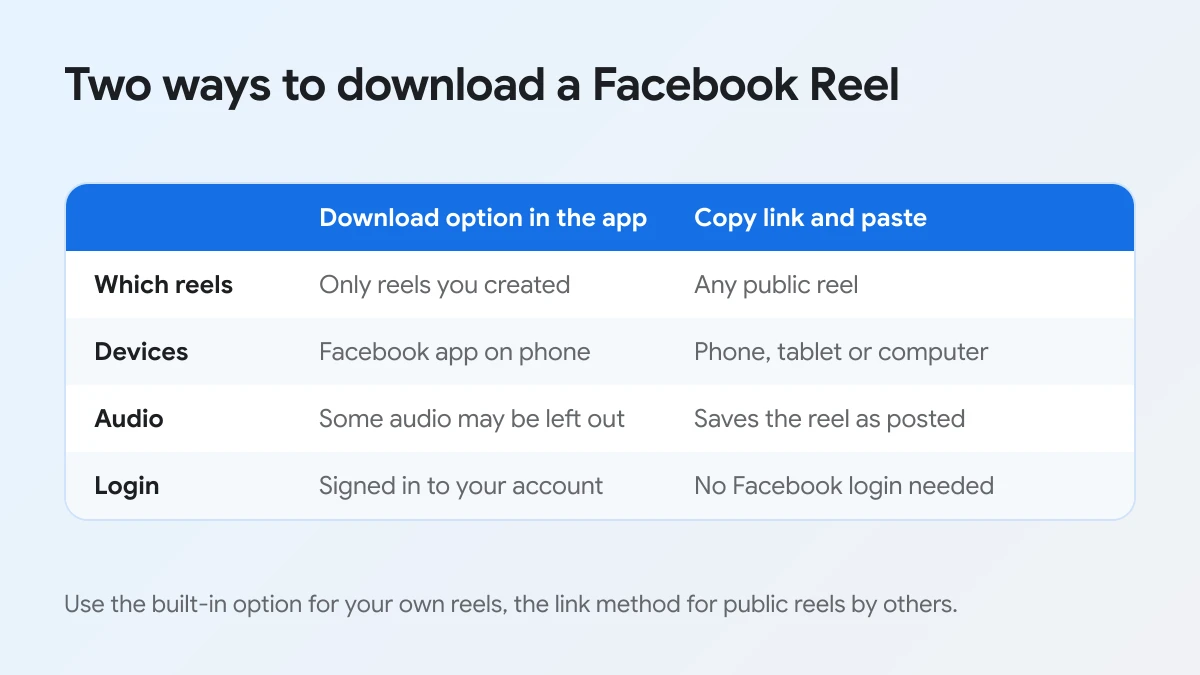
The built-in option comes with three limits worth knowing:
- Only reels you created: the option does not appear for reels made by other people.
- Only in the app on a phone: the feature is not offered on facebook.com in a computer browser.
- Audio may be missing: if your reel uses music or audio from someone else, the saved file may come out without part of its sound, so check it before you delete the original.
For these reasons, the link method is the practical choice when the reel belongs to someone else, when you work on a computer, or when the built-in download comes out silent. For your own reels on a phone, the built-in option is quick and keeps everything inside Facebook.
Which Facebook Reels can you download?
There are 3 groups of Facebook Reels to consider, sorted by who is allowed to watch them: your own reels, public reels from other people, and private or limited reels, and only the first two can be saved from a link.
To sort a reel quickly, ask who can see it. The downloader can only reach what anyone on the internet could open, so the audience setting of the reel decides whether the steps above will work.
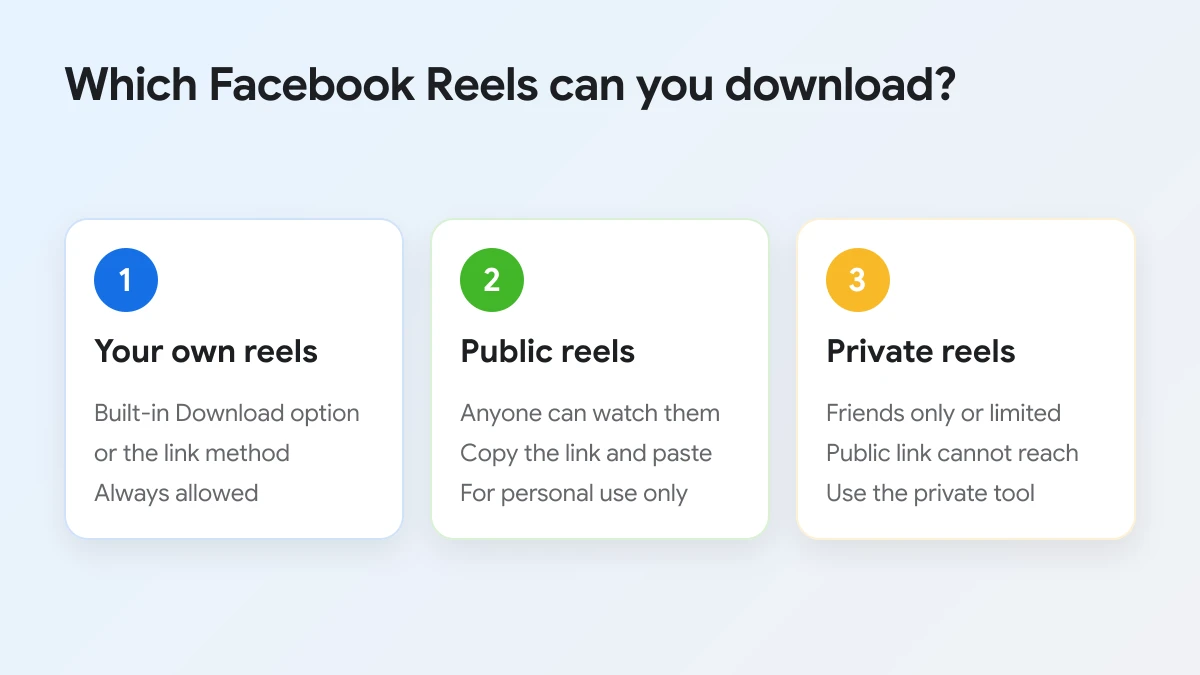
The table below sums up what each group means for the download.
| Group | Who can watch it | Can you download it? |
|---|---|---|
| Your own reels | You and your chosen audience | Yes, with the built-in option or the link method |
| Public reels by others | Anyone | Yes, with the link method |
| Private or limited reels | Friends or a custom list | Not from a public link |
Your own reels
Your own reels are always yours to save. Use the Download option in the app on your phone, or use the link method if the built-in file comes out muted or if you are on a computer.
Public reels from other people
Public reels from pages, creators and friends who share with everyone can be saved through their link. These make up most of the reels you see in the Reels feed. Saving them for personal viewing is fine, but the video still belongs to the person who made it, so ask for permission before you post it again or use it for anything commercial.
Private or limited reels
Private reels are shared only with friends or a custom list, so a public link cannot reach them even when you can watch them in your own app. The same applies to reels posted inside private groups, since only members can open them. A quick test is to open the link in a browser window where you are not logged in to Facebook: if the reel plays there, it is public and the link method will work. For videos like these, FDown offers a separate tool to download private Facebook videos that is built for friends-only and private videos.
What else should you know before downloading Facebook Reels?
Beyond the steps, two questions come up often once people start saving reels: how to keep only the sound, and what happens to a watermark that is already on the video.
Can you download only the audio of a Facebook Reel?
Yes. The quality list usually includes audio options, such as MP3, that save only the sound of the reel, which is handy for songs, talks and voice clips you want to hear offline. An audio option may need a short processing step first, so it can take a moment longer than a 720p video, and the file is much smaller because it has no picture.
Does a downloaded reel keep its watermark?
FDown saves the original reel file and never adds a watermark or logo of its own. If the reel already shows a creator name or another app's watermark, that mark is part of the picture itself, so it stays in the saved file and no downloader can remove it.