To convert a Facebook video to MP4, copy the video link, paste it into a Facebook video downloader and choose a quality, and the video is saved straight to your device as an MP4 file. No separate converter or software is needed.
Specifically, the reason is simple: the file you get from a downloader is already an MP4. The download step and the conversion step are the same thing, so there is no second tool to install and no extra waiting time after the file arrives.
To understand what you get, it helps to know what MP4 actually is. MP4 is a common video format that keeps the picture and the sound together in one file, which is why it plays on almost every phone, computer and smart TV without any extra app.
Below, you will find the 3 steps in detail, a closer look at the MP4 format, a guide to choosing the right quality, and the difference between MP4 and MP3. The last part shows how the steps change on Android, iPhone and computer, followed by a few reasons a video may not save as MP4.
How do you convert a Facebook video to MP4?
You convert a Facebook video to MP4 by downloading it from its link: copy the link, paste it into a downloader and pick a quality, which saves the video as an MP4 file on your device in a few seconds.
To begin, here are the 3 steps at a glance, followed by what to do in each one.
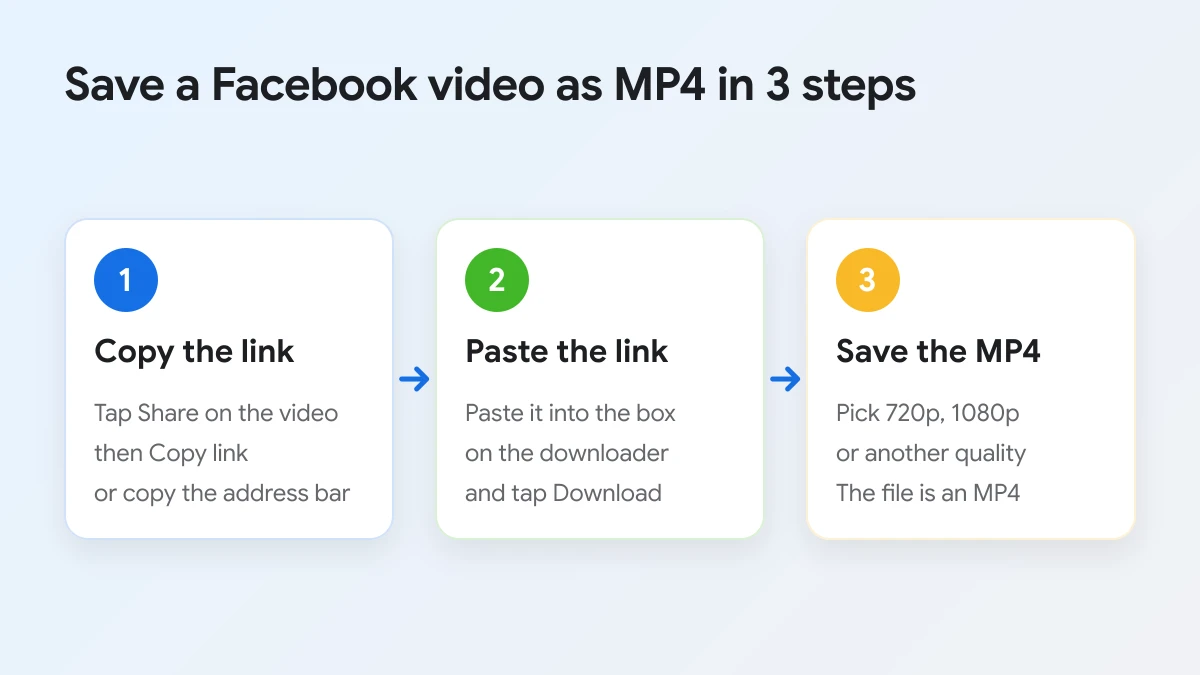
- Copy the video link. In the Facebook app, tap Share under the video and choose Copy link. In a browser, copy the address of the video from the address bar.
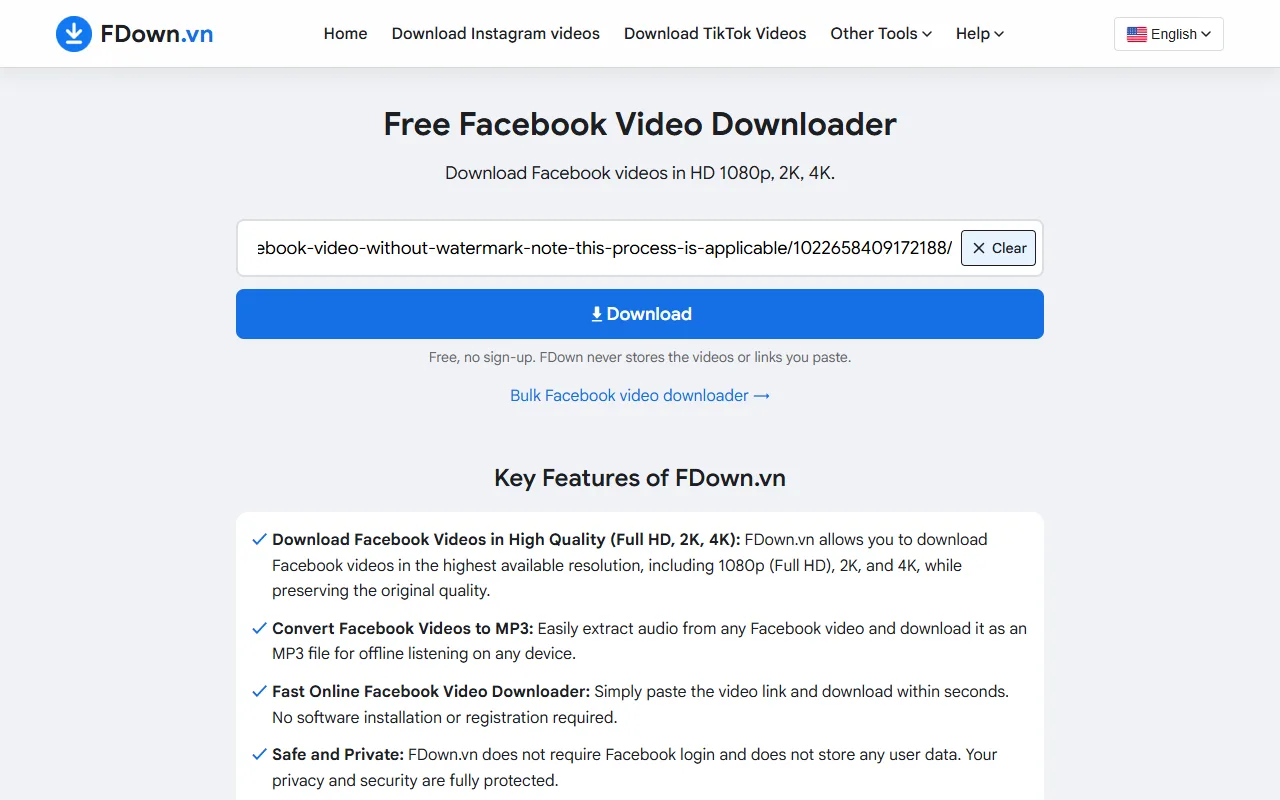
- Paste the link. Open the Facebook video downloader, paste the link into the box that says "Paste Facebook video link here..." and tap Download.
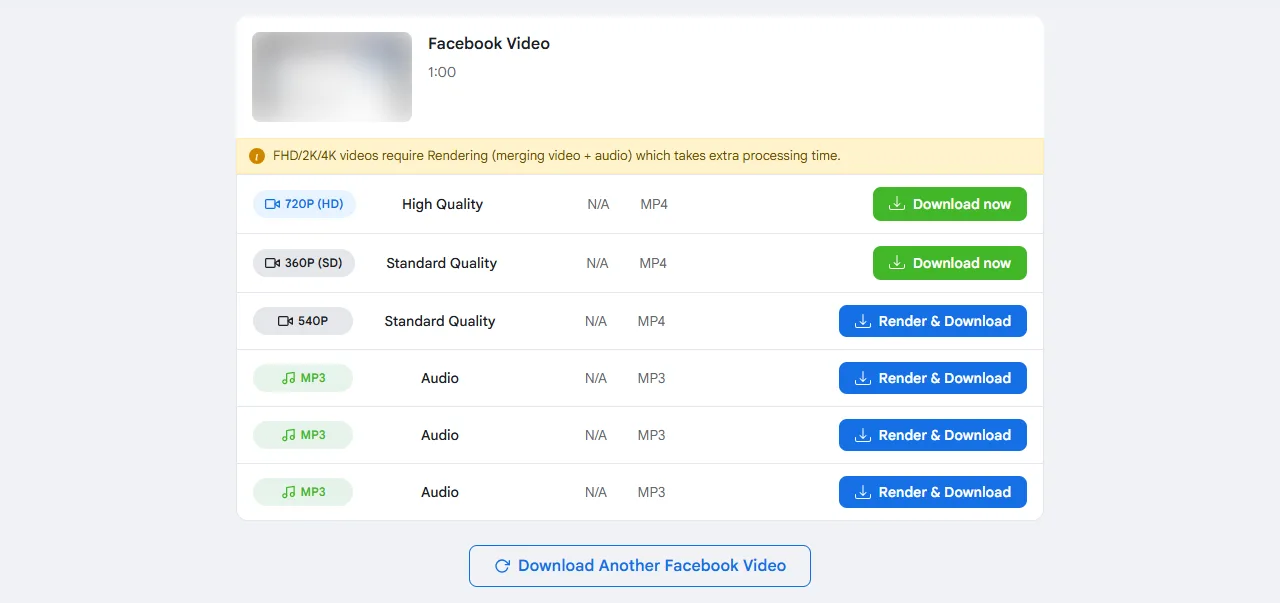
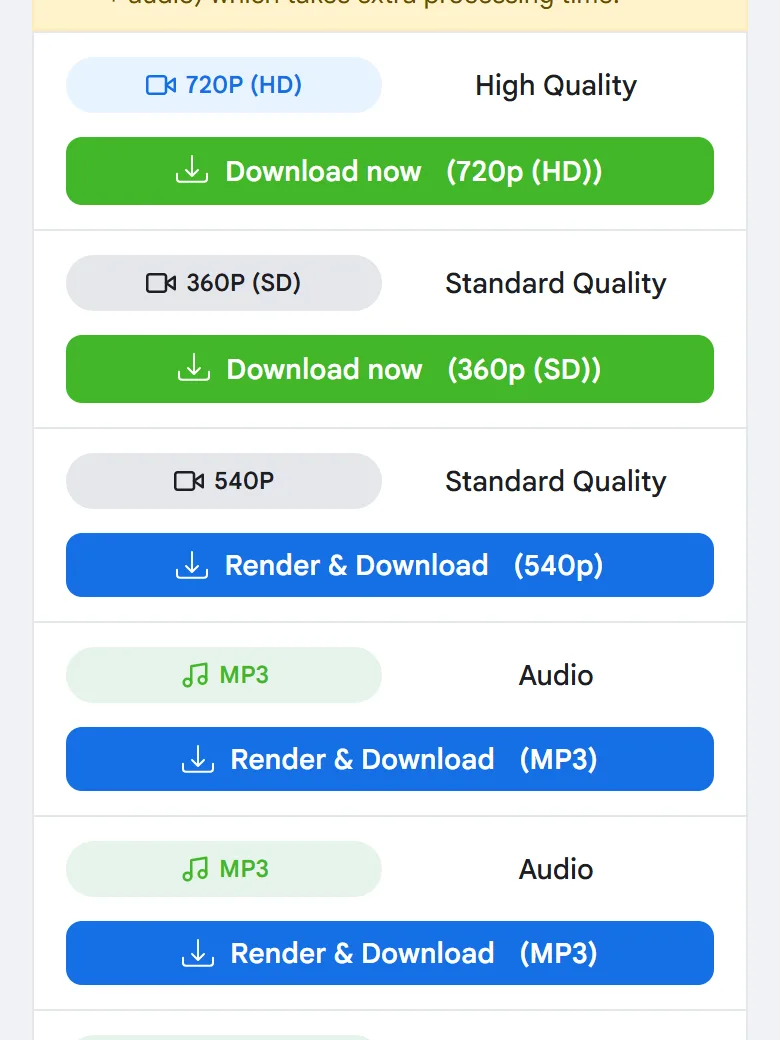
- Save the MP4. A list of qualities appears. Tap Download now or Render & Download next to the quality you want, and the MP4 file is saved.
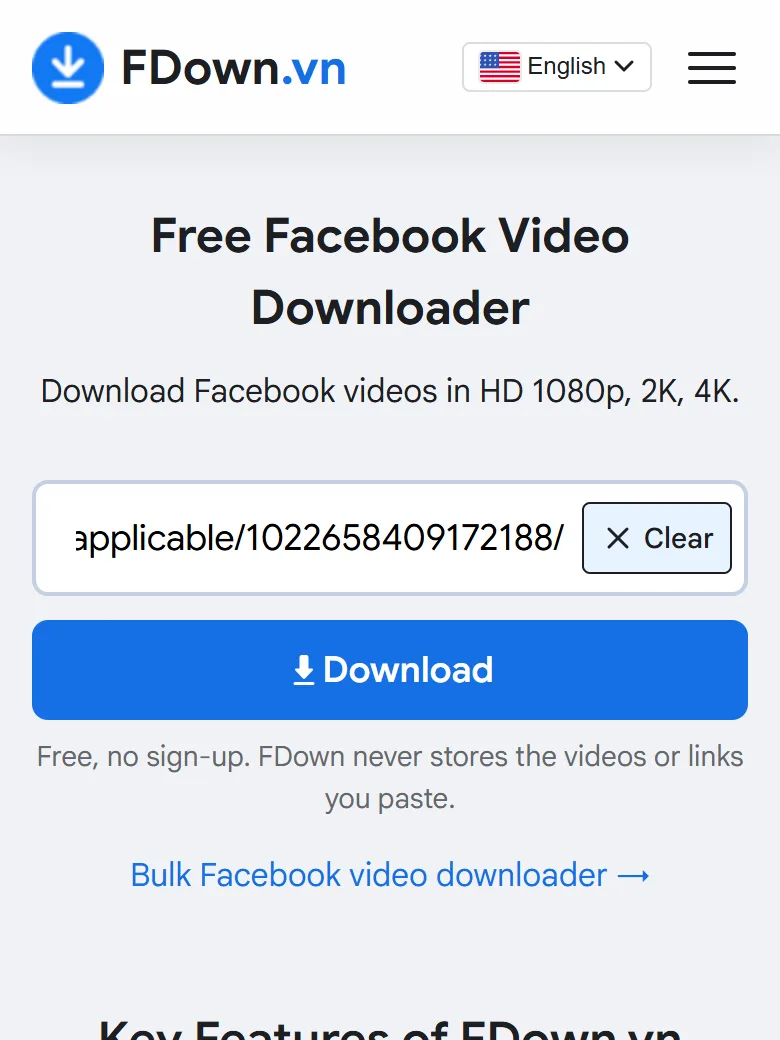
The link is what makes the conversion possible. The downloader reads the public video behind that address and lists every quality the original upload contains. You do not need to log in to Facebook, and the tool does not add any watermark or logo of its own to the file. The service is free, needs no sign-up, and has no limit on how many videos you save one by one.
Facebook links come in a few shapes, and all of them work in the same box:
- Full video links, such as facebook.com/watch?v= or a page address that ends in /videos/ followed by a number.
- Reel links, which look like facebook.com/reel/ followed by a number.
- Short share links, such as fb.watch or facebook.com/share/v/, which you get when you tap Copy link in the app. The downloader follows them to the full video on its own.
If you copied the link from a message or a post caption, check that nothing else was copied with it, such as a line of text before the address. A clean link that starts with https:// gives the fastest result.
A common question is whether you need to keep the page open while the MP4 saves. For Download now qualities, the file transfer starts at once and runs through your browser, so you can switch tabs while it finishes. For Render & Download qualities, stay on the page while the progress runs. When rendering ends, a download button appears in place of the progress; tap it to save the MP4.
Is a downloaded Facebook video already an MP4 file?
Yes, a downloaded Facebook video is already an MP4 file: the downloader saves it in the format Facebook uses to play it, the result list labels each video option MP4, and the file opens in any player.
To see this for yourself, look at the format column of the result list on a computer. The video qualities are marked MP4, while the audio options are marked as an audio format such as MP3. Nothing is converted after the download; the MP4 you pick is the file you get.
This matters for three reasons:
- No second tool: you skip the step of installing a converter or uploading the file to another site.
- No quality loss from re-encoding: a converter that re-processes a video can only keep or reduce its quality, so saving the MP4 directly gives you the original picture.
- Faster result: the file is ready as soon as the download ends, with no extra conversion queue.
In short, when people search for a way to convert a Facebook video to MP4, what they need is a way to download it. Once the file is on your device, it already plays in the gallery on Android, the Files or Photos app on iPhone, and the default video player on Windows and Mac.
So why do so many tools call themselves a Facebook to MP4 converter? Mostly because that is the phrase people type into search. Watching a video on Facebook and owning a copy of it feel like two different formats, so "convert" sounds like the right word. In practice, the video you watch in the feed is streamed to you as MP4 data already, and a downloader simply saves that data as a file instead of playing it once and discarding it.
You can confirm the format on your own device after the download:
- On Android, open the Files app, long press the video and tap the info or details option. The name ends in .mp4.
- On iPhone, open the video in the Files app and look at the file name under the preview, or tap Get Info.
- On a computer, look at the file in the Downloads folder. If extensions are hidden on Windows, turn on File name extensions in the View menu of File Explorer to see .mp4.
What is an MP4 file?
An MP4 file is a digital video container, officially MPEG-4 Part 14, that stores a video track, an audio track and extra details such as subtitles together in one file that almost every device can play.
To put it simply, think of MP4 as a box rather than a single recording method. The box holds the moving picture and the sound side by side, along with timing information that keeps them in sync, so your player can open one file and show both.
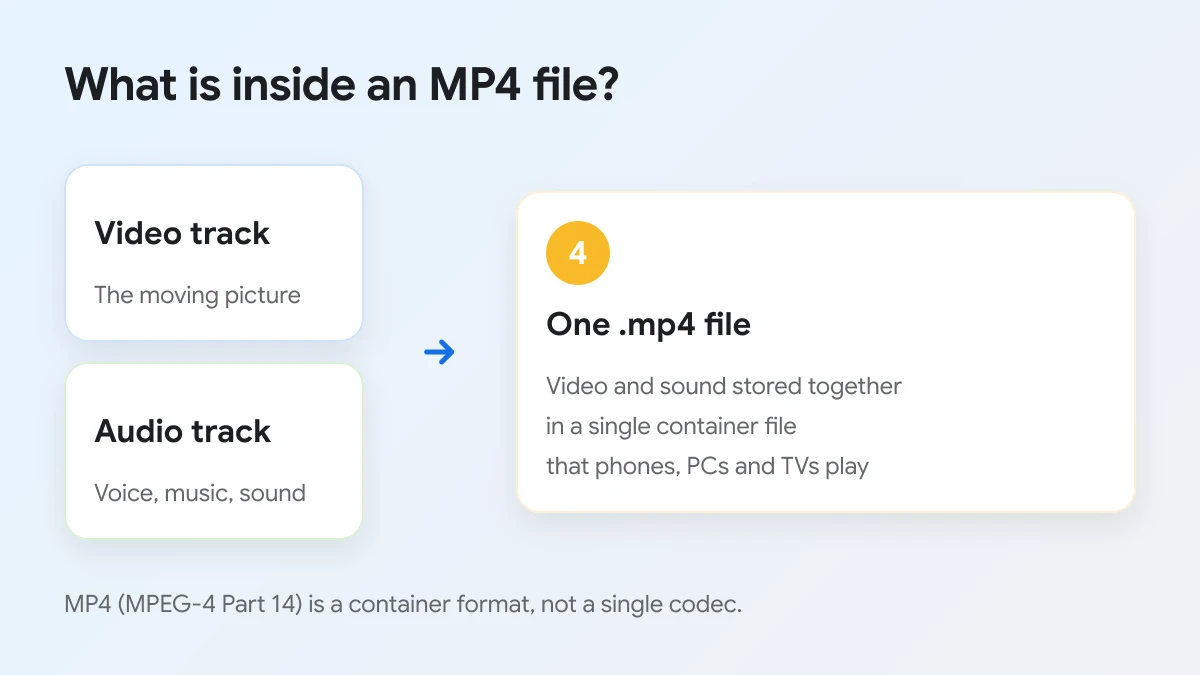
According to the Library of Congress format description, the MP4 file format is defined in the international standard ISO/IEC 14496-14 and is based on the ISO Base Media File Format. It can carry video streams, audio such as Advanced Audio Coding, timed text and metadata in a structured way.
For everyday use, the key features of MP4 are:
- Wide support: phones, tablets, computers, smart TVs and most video editors open MP4 files without extra software.
- Picture and sound together: one file holds both, so you never have to match a separate audio file.
- Reasonable size: MP4 uses efficient compression, which keeps a short video small enough to store and share.
- Easy to share: messaging apps, cloud drives and social networks accept MP4 uploads.
It also helps to separate two words that are often mixed up: container and codec. The container is the file type you see at the end of the name, .mp4. The codec is the method used to compress the picture or the sound inside it. One MP4 container can hold video and audio made with different codecs, which is why the Library of Congress lists audio such as AAC as one possible content rather than the only one. For everyday saving, you do not need to choose a codec at all; the MP4 you download already uses one your device can play.
Other video formats you may meet are MOV, which Apple devices often use for recordings, and MKV, which is popular for long films with several audio tracks. Both are containers too. MP4 stays the safest choice for a saved Facebook video, because it opens on the widest range of phones, computers and TVs without installing anything extra.
Which quality should you choose when you save a Facebook video as MP4?
720p wins for everyday viewing on a phone, 1080p and higher win for sharpness on big screens or editing, and 360p wins when you need the smallest MP4 file for limited storage or a slow connection.
To make the choice easier, it helps to know that the qualities in the list come from the original upload. A video uploaded in 1080p, 2K or 4K can be saved in that quality, while a video uploaded in low quality cannot become sharper through any download or conversion.
The table below compares the qualities you usually see, the button each one uses and what it suits best.
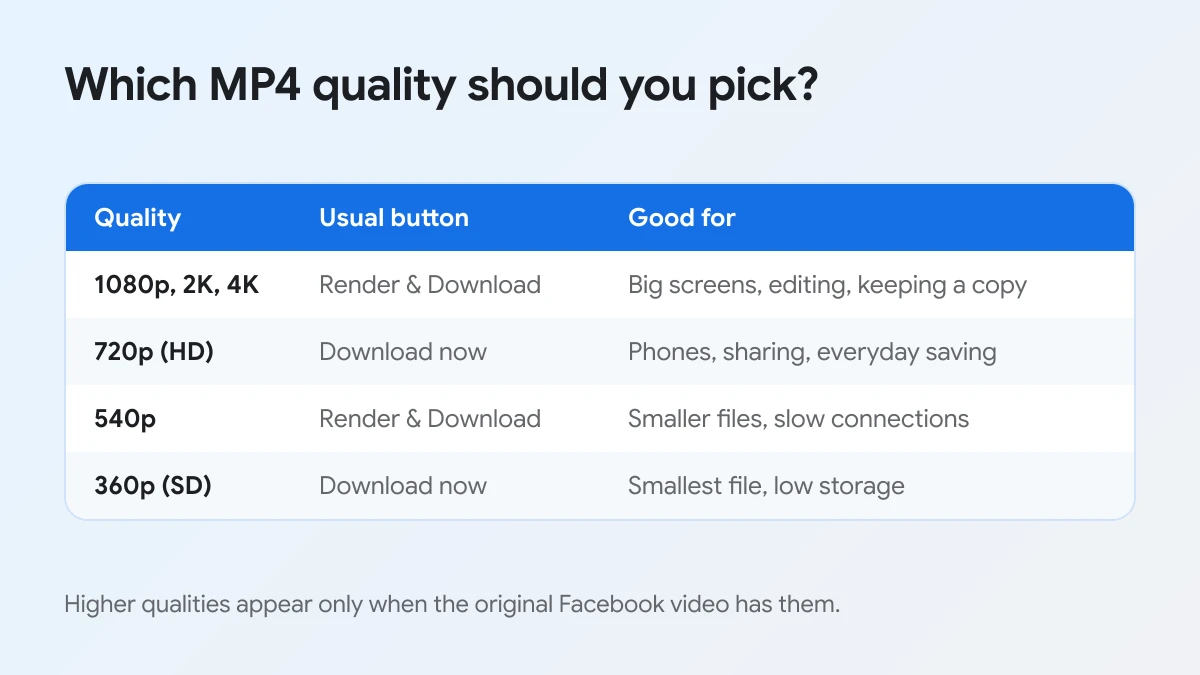
| Quality | Usual button | Good for |
|---|---|---|
| 1080p, 2K, 4K | Render & Download | Big screens, editing, keeping a lasting copy |
| 720p (HD) | Download now | Phones, sharing, everyday saving |
| 540p | Render & Download | Smaller files on slow connections |
| 360p (SD) | Download now | The smallest file when storage is low |
Download now qualities
Download now qualities, usually 720p (HD) and 360p (SD), start saving the moment you tap the button. Facebook stores these qualities as one ready file with picture and sound already together, so the downloader can pass the MP4 straight to your device.
Render & Download qualities
Render & Download qualities, such as 1080p and other options, need a short processing step first. The result card explains that FHD, 2K and 4K videos require rendering, which means merging the video and the audio into one MP4. The wait depends on the length of the video, and the finished file is a normal MP4 like the others.
A few practical tips help you pick well:
- Think about where you will watch it. On a phone screen, 720p already looks sharp, and the file stays light enough to keep many videos at once.
- Think about storage. A higher quality means a bigger MP4. If your phone is nearly full, 360p lets you keep a long video without deleting anything.
- Think about the future. If the video matters to you, such as a family event or a lesson you will rewatch, save the highest quality offered. You cannot add detail back later.
- Check the list before you choose. Higher qualities appear only when the original Facebook video has them. If 1080p is missing, the uploader shared it in a lower quality.
What is the difference between MP4 and MP3 for a Facebook video?
MP4 keeps both the picture and the sound of a Facebook video, while MP3 keeps only the sound, which makes MP3 files much smaller and better suited to music, talks and podcasts you want to hear offline.
In other words, the choice depends on whether you need to watch or only listen. The result list shows MP3 options under the Audio label next to the MP4 qualities, so you can pick either one from the same link.
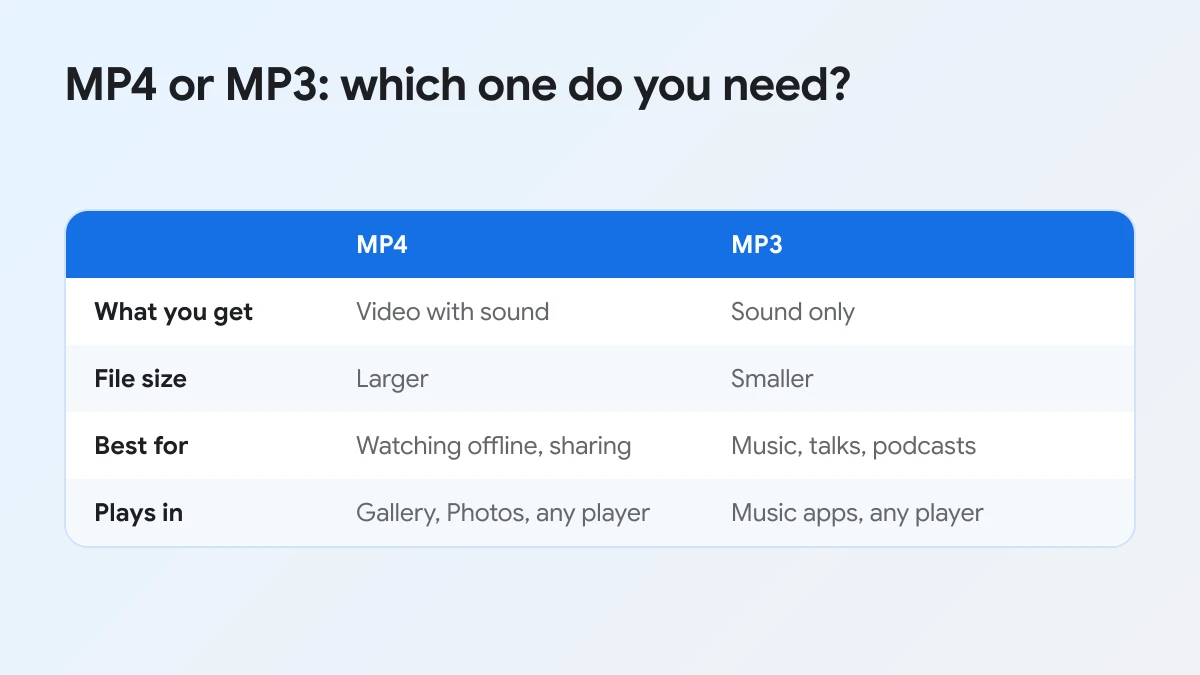
The table below sums up how the two formats differ in daily use.
| MP4 | MP3 | |
|---|---|---|
| What you get | Video with sound | Sound only |
| File size | Larger | Smaller |
| Best for | Watching offline, sharing a clip | Songs, speeches, lessons, podcasts |
| Where it plays | Gallery, Photos, any video player | Music apps, any audio player |
Choose MP4 when the picture matters, for example a recipe, a tutorial or a family moment. Choose MP3 when the sound carries the value, such as a live music performance or a talk you want to replay while commuting. An audio option may need a short processing step first, so it can take a moment longer than a 720p MP4 to prepare.
How do you convert a Facebook video to MP4 on Android, iPhone and PC?
You convert a Facebook video to MP4 on Android, iPhone and PC with the same 3 browser steps, and only the saving place changes: Downloads on Android, the Files app on iPhone, and the browser's Downloads folder on a computer.
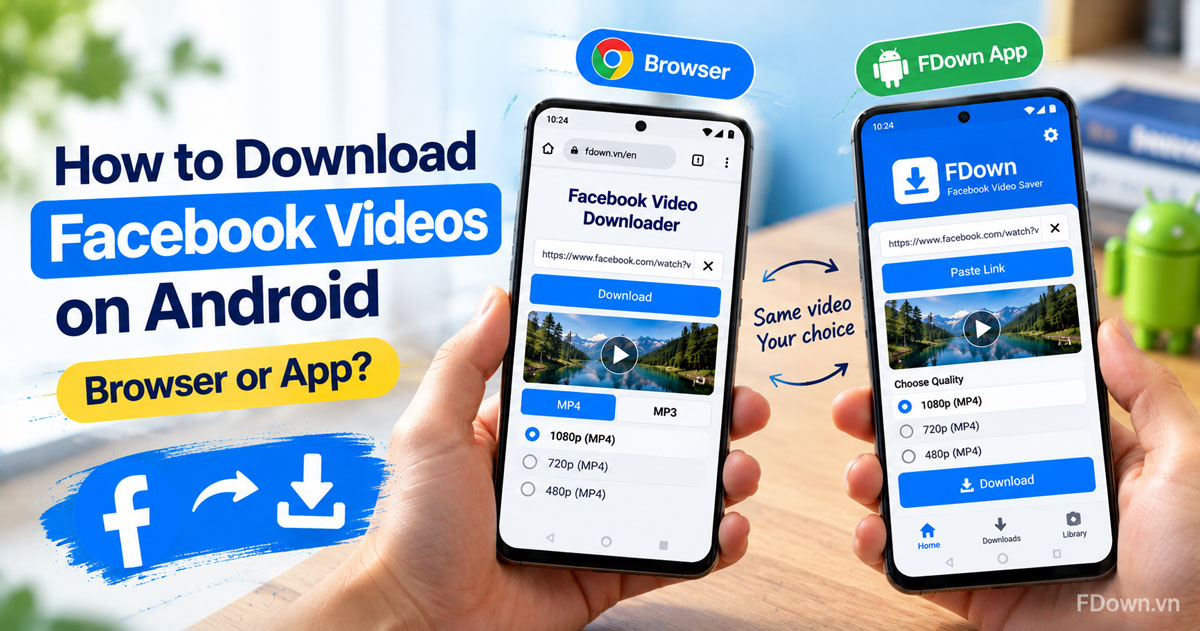
Next, the sections below walk through each device. The method works in Chrome, Safari, Edge and Firefox, so you can use the browser you already have. For a full walkthrough of the browser method on every platform, see how to download Facebook videos in any browser.
On Android
On Android, open the downloader in Chrome, paste the video link and tap a quality. The MP4 is saved in the Downloads folder, and you can open it from the Chrome download bar or later from the Files app.
Most gallery apps also list videos from the Downloads folder. If the video does not appear there, you can put the MP4 into your gallery or camera roll by moving it in the Files app.
On iPhone
On iPhone, use Safari or Chrome to paste the link and tap a quality. The MP4 is saved in the Files app; open it, tap the Share icon and choose Save Video to add it to your camera roll in Photos.
In Safari, a small prompt asks whether to download the file. Tap Download, then find the file under the downloads arrow in the address bar or in Files under Downloads. Until you save it to Photos, the video stays in Files, where it still plays normally.
On a PC or Mac
On a PC or Mac, copy the video address from facebook.com, paste it into the downloader and click a quality. The MP4 file goes to the browser's Downloads folder and opens in the default video player on Windows or Mac.
On a big screen, 1080p is worth the short render time, because the difference from 720p is easy to see on a monitor. If you plan to edit the clip, a higher quality also leaves more room for cropping without the picture turning soft.
If the MP4 does not show up
First, look in the right place: the Downloads folder on Android and on a computer, or the Files app on iPhone. Next, check your browser's download list to see whether the file is still in progress or was blocked. On iPhone, remember that the video reaches Photos only after you open it in Files and choose Save Video. If the list stays empty, try the link again on a stable connection.
Why might a Facebook video not save as MP4?
Most failed downloads come from a link that cannot be read, so check that the link is complete, that the video is public and that your connection is stable. If all three are fine, you can send the link to contact@fdown.vn for help.
Can you convert a private Facebook video to MP4?
Not from its link, because a private or friends-only video cannot be opened by anyone outside its audience, and that includes a downloader. For videos like these, use the private Facebook video downloader, which is built for friends-only and private videos. Saving is meant for personal, non-commercial use: download only videos you are allowed to watch, respect the copyright of the people who made them, and ask the owner before you post a saved MP4 anywhere else.
Does converting a Facebook video again lower its quality?
It can. Every time a converter re-compresses a video, it can only keep or lose detail, never add it back. Since the downloaded file is already an MP4, the safest way to keep the best picture is to download it once in the quality you need and leave the file as it is.