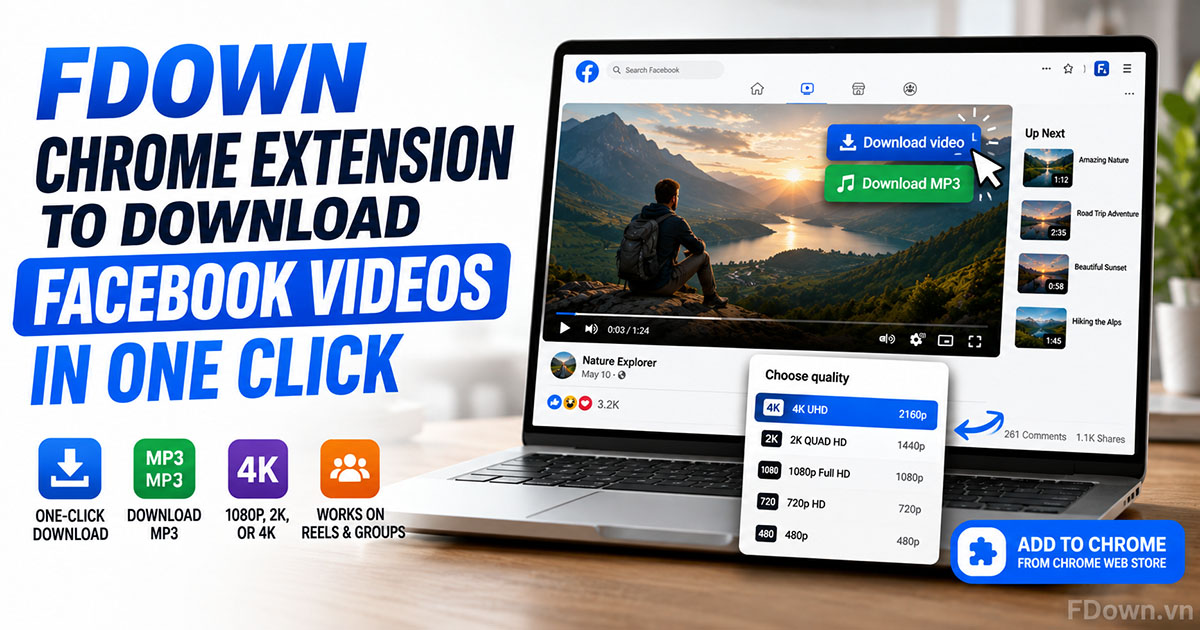
FDown Chrome Extension is a free browser add-on from FDown.vn that lets you download Facebook videos in one click directly from your News Feed, Pages, Groups, and Reels. Specifically, the extension places a Download video button on every video you scroll past, so you never have to copy a link, open a new tab, or paste anything into a website. More importantly, videos save in their original quality up to 1080p, 2K, or 4K as MP4 files, and a second button converts any video to MP3 with the same single click.
To install the FDown Chrome Extension, you open its official listing on the Chrome Web Store, click Add to Chrome, confirm the permissions dialog, and reload any Facebook tab that is already open. In addition, pinning the FDown icon to the toolbar takes a few seconds and gives you access to the popup where you can paste a post link. As a result, the whole setup finishes in under a minute on a normal internet connection.
To download a Facebook video with FDown, you open the video, click the Download video button on the player, choose the quality you want, and let Chrome save the file to your Downloads folder. Besides that, the same button works on Reels, Page videos, and group posts. Furthermore, because the extension reads the video inside your own logged-in session, it can save videos from groups you belong to that an online tool cannot reach.
Next, this guide walks through each of those steps in detail, explains which videos the extension supports, shows you what to do when the Download video button does not appear, and finally compares the extension with the FDown online downloader so you can pick the right tool for each device.
What Is the FDown Chrome Extension?
The FDown Chrome Extension is a free video-saving add-on for Google Chrome, published by the team behind the FDown.vn Facebook video downloader, that adds a one-click Download video button and a Download MP3 button directly onto Facebook videos in your browser.
To understand why this matters, think about how most people save a Facebook video today: they copy the post link, switch to a downloader website, paste the link, wait for processing, and then click Download. In contrast, the FDown Chrome Extension removes every step except the last one.
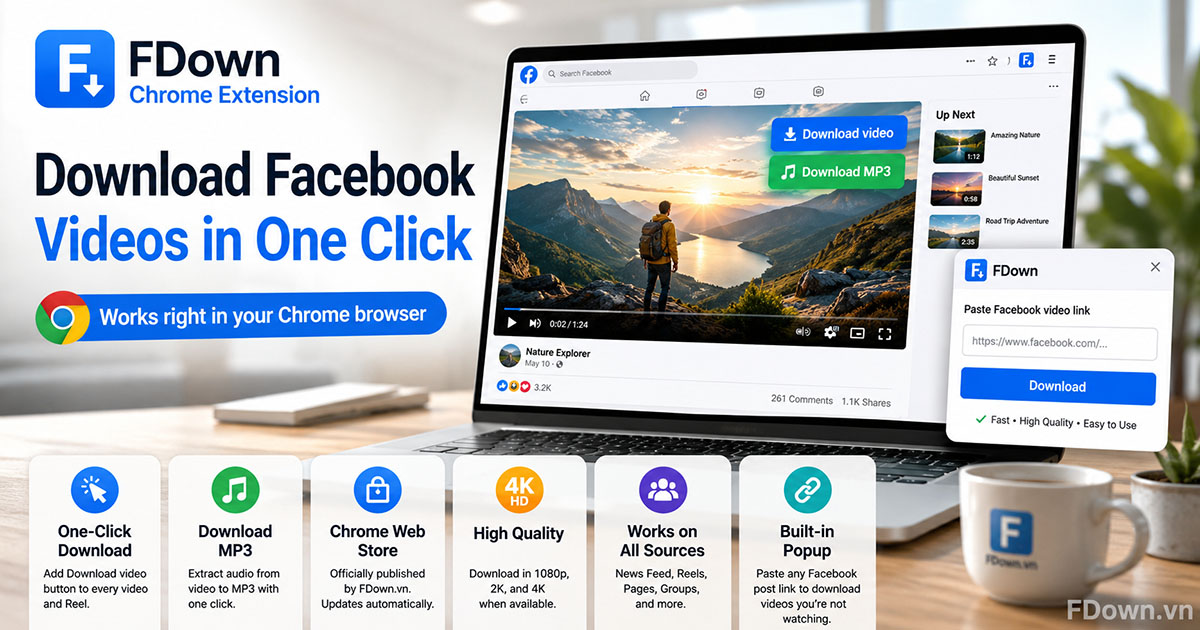
The extension works entirely inside your Chrome window. Once installed, it scans the page you are viewing for Facebook video players and attaches two small buttons to each one: Download video and Download MP3. When you click either button, the extension reads the video source that Facebook has already delivered to your browser and hands the file to Chrome's built-in download manager. Because of this design, there is no software to run and nothing to paste for videos you are already watching.
Here are the core attributes of the FDown Chrome Extension that define how it works:
- One-click Download video button: appears on every supported video and Reel without any extra clicks or menus.
- Download MP3 button: converts the audio track of a video to MP3 with the same single click.
- Chrome Web Store install: distributed through the official store under the FDown.vn developer account, so updates arrive automatically.
- High-quality output: the extension offers 1080p, 2K, and 4K whenever the original video was uploaded in those resolutions.
- Support for multiple sources: News Feed, Reels tab, Page videos, and group posts.
- Built-in popup: paste any Facebook post link into the extension popup to download a video you are not currently viewing.
What Facebook Videos Can FDown Download in One Click?
FDown can download four types of Facebook videos in one click: News Feed videos, Reels, Page videos, and group post videos, classified by where the video player loads inside Facebook.
To see how each source behaves, look at the list below:
- News Feed videos: the Download video button appears as soon as the video scrolls into view and starts loading.
- Reels: the button sits on the Reels player, whether you open Reels from the feed or from the Reels tab.
- Page videos: works on both the Page timeline and the dedicated Videos tab of any public Page.
- Group post videos: supported for public groups and for private groups you have already joined.
Beyond those four sources, the extension also saves Facebook photos, and the popup accepts any Facebook post link. For example, if a video is embedded on a news site or lives on a Watch page where the overlay button does not render, you copy the post link, open the FDown popup, paste it, and download from there.
The single limit across every source is visibility. In other words, the FDown Chrome Extension can only download a video that your logged-in account is allowed to watch. If the video is hidden from you by privacy settings, the extension will not see it either.
Is the FDown Extension Free to Add to Chrome?
Yes, the FDown Chrome Extension is completely free to add to Chrome, because there is no purchase price, no download limit, and no account registration required at any point.
To be clear about what free means here, the extension does not lock 1080p, 2K, or 4K quality behind a paid tier, does not add a watermark to saved videos, and does not cap the number of downloads per day. Additionally, you do not need to create an FDown account or sign in anywhere. You simply add the extension and start saving videos.
The FDown team keeps the extension free because it complements the FDown.vn website, and the website already serves the same purpose for mobile users. Consequently, the extension is the desktop-friendly version of a tool you can already use for free.
How Do You Install the FDown Chrome Extension on Google Chrome?
You install the FDown Chrome Extension through the Chrome Web Store in four steps: open the FDown.vn listing, click Add to Chrome, confirm the permissions dialog, and pin the icon to your toolbar, which takes under one minute.
To walk through the installation on your own computer, follow the steps below in order:
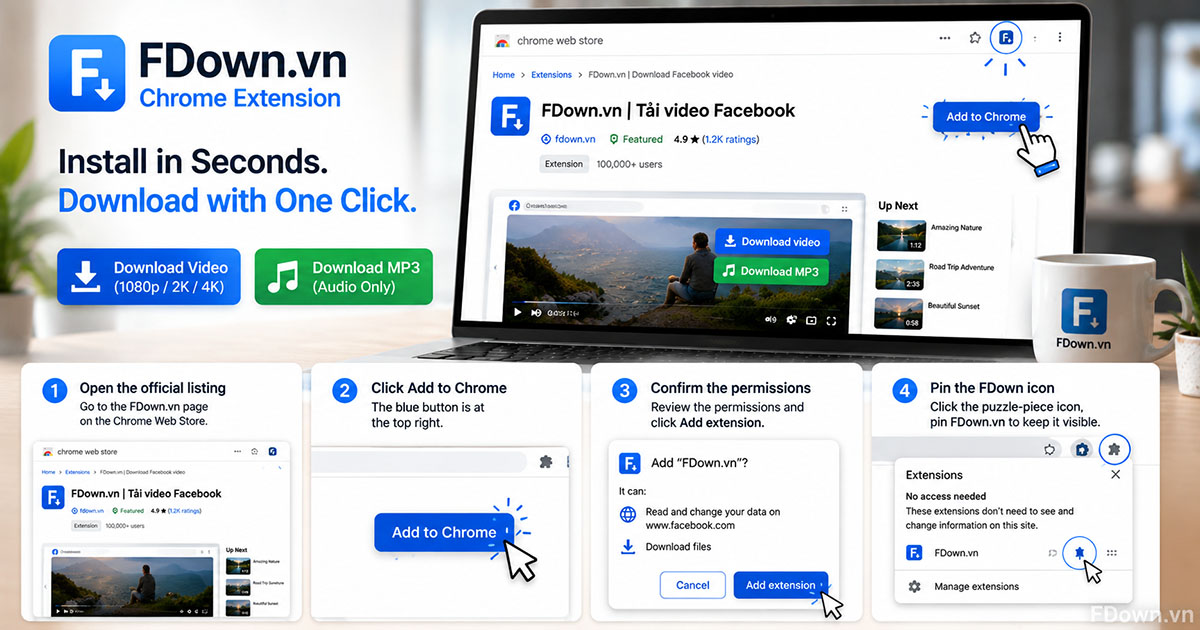
- Open the official FDown.vn listing on the Chrome Web Store. Click FDown.vn | Tải video Facebook on the Chrome Web Store to go straight to the correct page.
- Click Add to Chrome. The blue button sits at the top right of the listing page.
- Confirm the permissions dialog. Chrome shows a small window listing what the extension can access. Click Add extension to continue.
- Pin the FDown icon. Click the puzzle-piece icon next to the address bar, find FDown.vn in the list, and click the pin so the icon stays visible.
After step four, Chrome shows a short confirmation that the extension has been added. At this point, the FDown Chrome Extension is active, but any Facebook tab you opened earlier still needs a refresh, which the next section covers.
Important note: the FDown Chrome Extension only installs on desktop versions of Google Chrome for Windows, macOS, Linux, and ChromeOS. Chrome for Android and iOS does not support extensions at all, so phone users should use the FDown.vn website instead.
Where Do You Find FDown in the Chrome Web Store?
You find FDown in the Chrome Web Store by opening the official listing named FDown.vn | Tải video Facebook, published by VIETBASE with fdown.vn as the linked website, then checking the developer badge before installing.
To avoid installing the wrong extension, pay attention to a few details on the listing page. Several extensions use names that look similar, such as FDown, FDownloader, or FDownload, and they are built by different developers who have no connection to FDown.vn.
Here is how to confirm you are looking at the right listing:
- Listing name: the title reads FDown.vn | Tải video Facebook, with the FDown.vn logo as the icon.
- Developer: the Details section shows VIETBASE as the developer and fdown.vn as the website.
- Owner badge: the listing carries the Chrome Web Store note that it was created by the owner of the listed website, which confirms the extension and the site belong to the same publisher.
- Description: the overview mentions 1080p, 2K, 4K downloads and MP3 conversion, which look-alike extensions do not offer.
- Direct link: the safest path is the official FDown.vn Chrome Web Store link, since it always points to the current listing.
If you install through the direct link, you skip the search step entirely and remove any chance of picking a look-alike extension.
Do You Need to Reload Facebook After Installing FDown?
Yes, you need to reload any Facebook tab that was already open after installing FDown, because Chrome only injects an extension into pages that load after the extension is added.
To put it simply, Chrome does not retroactively attach a new extension to tabs that were loaded before installation. Therefore, a Facebook tab that was open during the install will not show the Download video button until you refresh it.
The fix takes one keystroke: press F5 on Windows or Command + R on macOS while the Facebook tab is active. Alternatively, close the tab and open Facebook again. After the reload, scroll to any video and the Download video button appears within a second or two of the video loading.
New tabs opened after installation do not need this step. Only the tabs that existed before you clicked Add to Chrome require a refresh.
How Do You Download a Facebook Video in One Click with FDown?
You download a Facebook video with FDown in three steps: open the video or let it load in your feed, click the Download video button on the player, and pick the quality, after which Chrome saves an MP4 file to your Downloads folder.
To see the process in action, open Facebook in Chrome and follow along:
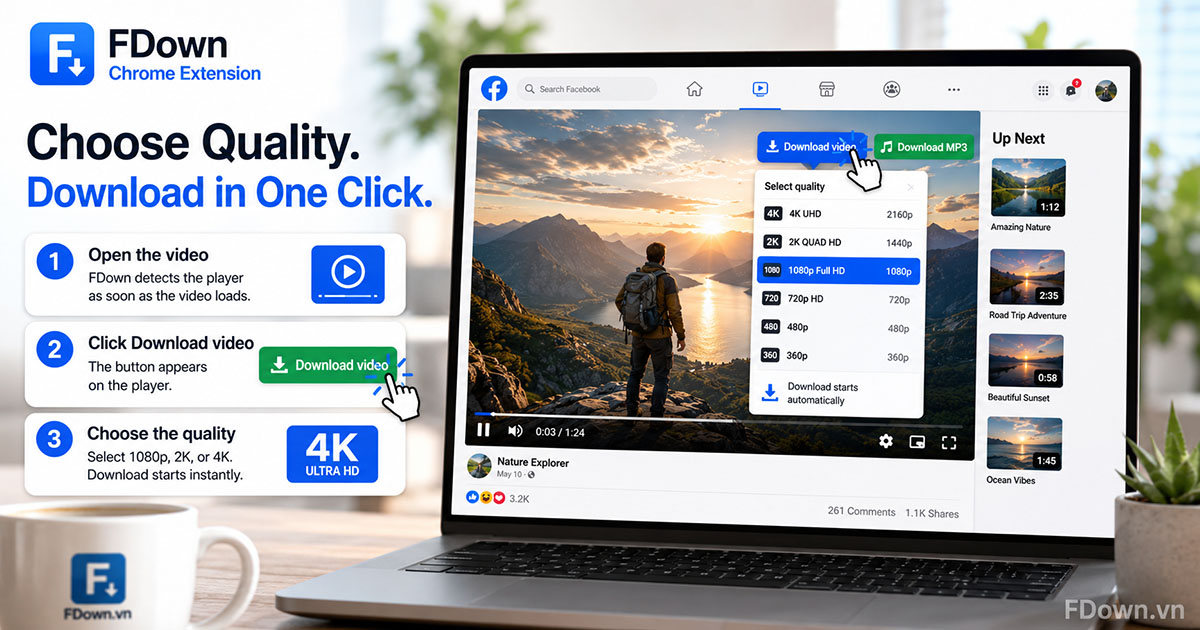
- Open the video or let it load in your feed. The FDown Chrome Extension detects the player as soon as Facebook starts streaming the video.
- Click the Download video button on the player. The button appears on the video itself, so you do not need to open the extension popup.
- Choose the quality. A small menu lists every resolution Facebook provides for that video, from SD up to 1080p, 2K, or 4K. Click the one you want, and Chrome begins the download immediately.
The download starts in Chrome's own download bar, which means you can watch the progress, pause it, or cancel it exactly like any other file. Once the file finishes, it appears in your Downloads folder with an MP4 extension, ready to play, share, or edit.
If you only want the sound, click Download MP3 instead of Download video. The extension extracts the audio track and saves it as an MP3 file in the same folder, which is handy for podcasts, music covers, or voice notes posted as video.
Tip for videos you are not currently viewing: click the FDown icon in the toolbar, paste the Facebook post link into the popup, and click Download. This route covers videos shared with you in Messenger or links copied from another device.
Where Does the FDown Download Button Appear on a Facebook Video?
The FDown Download video button appears as a small overlay on the Facebook video player itself, positioned near the top corner of the video on feed posts, Page videos, and group posts, and along the side of the player on Reels.
To recognize it quickly, look for a compact button labeled Download video with the FDown.vn color, and a second button labeled Download MP3 right next to it. On feed videos, both buttons sit above the video's edge and stay visible while the video is in view. On Reels, the buttons attach to the side of the vertical player, next to Facebook's own like and comment icons.
The buttons only show when the video has started loading, so if you scroll very fast past a post, give it a second to render. In addition, the buttons disappear automatically when you scroll away from the video and reappear when the video comes back into view.
Should You Choose HD or SD When Downloading with FDown?
Choose HD, meaning 1080p, 2K, or 4K, when quality matters more than file size, and choose SD when you need a small file for messaging apps or limited storage, because HD keeps the original resolution while SD is roughly three to five times smaller.
To compare the options directly, the table below lists what each quality delivers for a typical one-minute Facebook video:
| Criteria | HD (1080p, 2K, 4K) | SD (360p or 480p) |
|---|---|---|
| Visual quality | Original resolution, sharp on large screens | Softer, fine for phone screens |
| File size (1-minute clip) | Roughly 15 to 80 MB depending on resolution | Roughly 4 to 10 MB |
| Best for | Editing, presentations, archiving | Sharing in Messenger, WhatsApp, Zalo |
| Availability | Only when the uploader posted in that resolution | Available for almost every video |
One point to keep in mind: the FDown Chrome Extension can only offer the resolutions that Facebook itself provides for that video. If the original upload was 720p, the 1080p, 2K, and 4K options will not appear in the menu, and that is a property of the source video rather than the extension.
Where Are Downloaded Facebook Videos Saved on Your Computer?
Downloaded Facebook videos are saved in Chrome's default Downloads folder, which is C:\Users\YourName\Downloads on Windows and /Users/YourName/Downloads on macOS, unless you have changed Chrome's download location.
To check or change that location, open a new tab and type chrome://settings/downloads into the address bar. On that page, you will see the current folder under Location, along with a Change button that lets you pick a different folder. Furthermore, turning on the option Ask where to save each file before downloading makes Chrome prompt you for a folder every time, which is useful if you sort videos into different projects.
Files are named after the video or post title when Facebook provides one, otherwise the extension uses a generic name with the video ID. Either way, videos end in .mp4 and audio files end in .mp3, so you can find recent downloads quickly by sorting your Downloads folder by date.
Does FDown Download Facebook Reels, Group Videos, and Live Replays?
Yes, FDown downloads Facebook Reels, group videos, and Live replays, because all three are delivered through the same video player the extension monitors, although a Live video cannot be saved while it is still streaming.
To address each type separately, here is what the FDown Chrome Extension does with them:
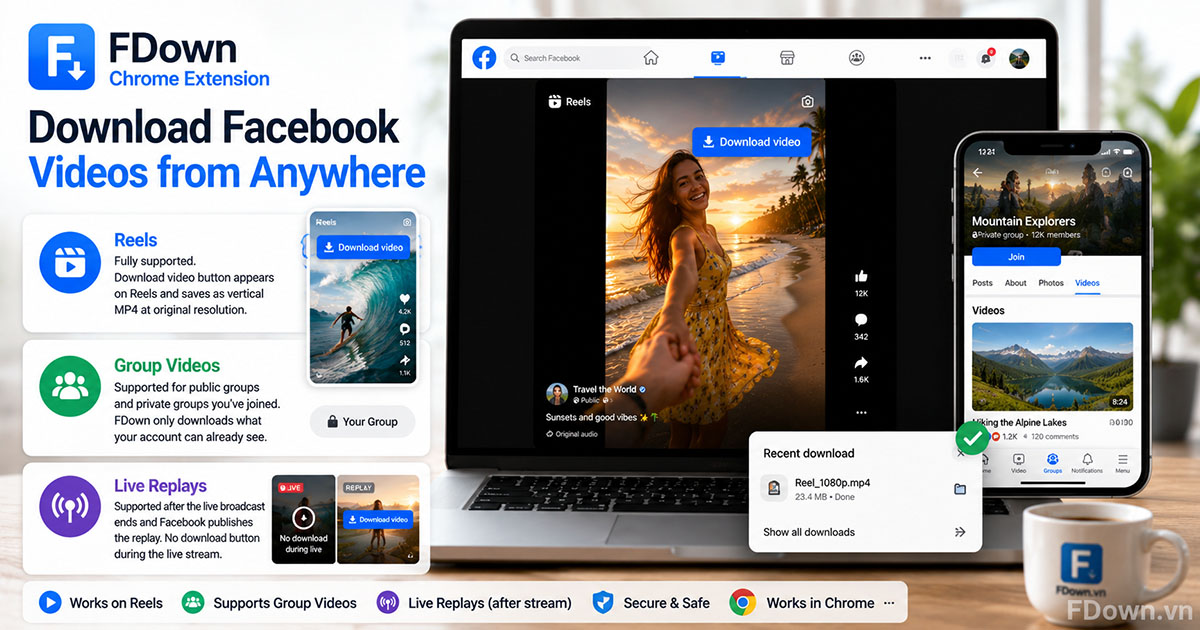
- Reels: fully supported. The Download video button appears on the Reels player, and Reels save as vertical MP4 files at the original resolution.
- Group videos: supported for public groups and for any private group your account has joined. The extension does not bypass group membership; it simply reads what your account can already see.
- Live replays: supported after the broadcast ends and Facebook converts it into a regular video. While the stream is live, there is no finished file to download, so the button does not appear until the replay is published.
The reason this works is that the FDown Chrome Extension reads the media stream that Facebook is already sending to your browser. Consequently, if the video plays for you inside Facebook, the extension can save it.
Can FDown Download Private or Friends-Only Facebook Videos?
Yes, FDown can technically save a friends-only Facebook video or a private group video when your logged-in account is allowed to watch it, because the extension reads the video inside your own browser session rather than through an external server.
This is the main difference between the extension and any online downloader. A website tool visits the post link as an anonymous visitor, so it only sees public content. The FDown Chrome Extension, on the other hand, runs inside the Facebook page you are already logged into, which means it has exactly the same access you do.
To be precise about the limits, the extension:
- Can save a video from a private group you belong to.
- Can save a friends-only video from someone on your friends list.
- Cannot save a video you cannot open, and it never tries to bypass privacy settings.
FDown.vn asks users to download only public content and content they have the right to use.Respecting the original poster's privacy is part of using the tool responsibly, which the final section of this article covers in more detail.
Does FDown Save Facebook Videos with Sound?
Yes, FDown saves Facebook videos with sound in the vast majority of cases, because the MP4 file includes both the video and audio tracks, with one exception involving videos that contain copyrighted music.
The exception works like this: when a video uses a licensed song, Facebook sometimes mutes the audio for playback in certain regions. If Facebook delivers the video to your browser without sound, the extension saves it without sound as well, since it can only capture what Facebook sends.
To handle a muted download, try these options in order:
- Check the video on Facebook first. If it plays silently in your browser, the source itself is muted.
- Try another quality option. Occasionally a lower-resolution stream includes audio when the highest one does not.
- Paste the post link into the FDown popup or use the FDown.vn website as a fallback, which sometimes retrieves an alternate version of the file.
Regular videos with original audio, voiceovers, or non-licensed background sound download with full sound every time, and the Download MP3 button extracts that same audio track on its own.
Why Is the FDown Download Button Not Showing on Facebook?
The FDown Download video button is not showing on Facebook for one of five reasons: the tab was not reloaded after installation, the extension is disabled, an ad blocker is interfering, Facebook changed its layout, or you are browsing in Incognito mode without extension access.
To fix the problem, work through the causes below from the most common to the least common:
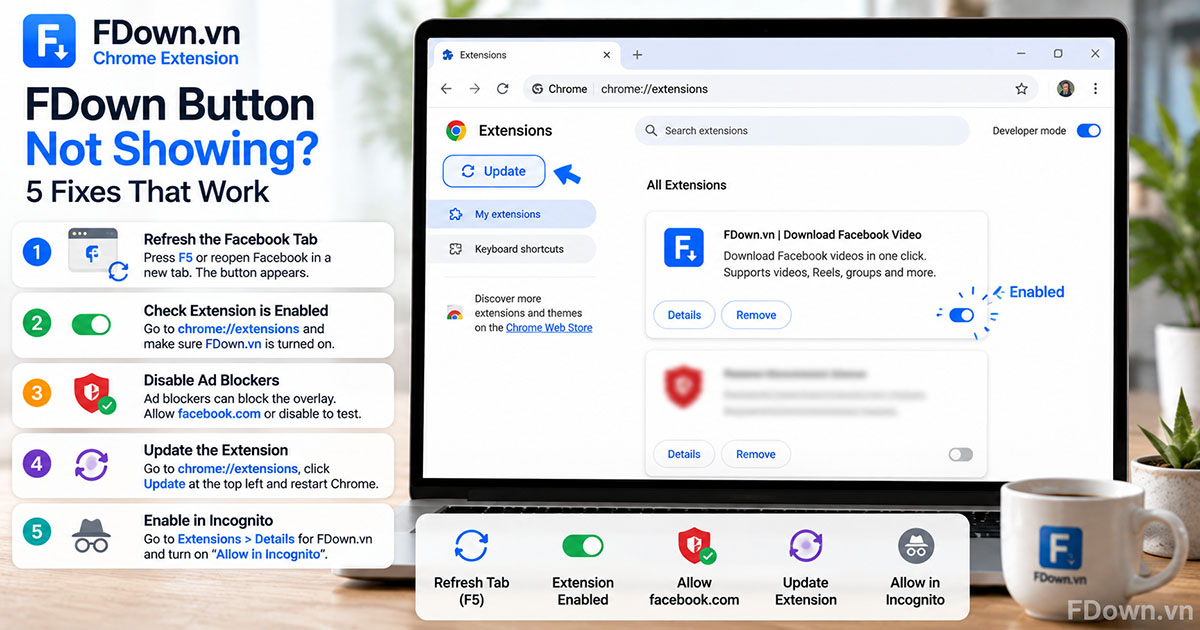
- The Facebook tab was open before you installed FDown. This is the most frequent cause. Press F5 or reopen Facebook in a new tab, and the button appears.
- The extension is turned off. Type chrome://extensions into the address bar, find FDown.vn, and make sure the toggle is switched on. Chrome sometimes disables extensions after a browser update.
- An ad blocker or privacy extension is blocking the script. Extensions such as uBlock Origin or Privacy Badger can block the overlay. Add facebook.com to the allow list of that extension, or temporarily disable it to confirm the conflict.
- Facebook updated its page layout. Facebook changes its HTML structure regularly, which can hide the button until FDown ships an update. Go to chrome://extensions, click Update at the top left, and restart Chrome.
- You are in Incognito mode. Chrome blocks extensions in Incognito by default. Open chrome://extensions, click Details under FDown.vn, and switch on Allow in Incognito.
While you wait for a fix, the popup still works: click the FDown icon, paste the post link, and download. The popup does not depend on Facebook's page layout, so it keeps working even when the overlay button is temporarily hidden.
If none of these steps restores the button, remove the extension, reinstall it from the official Chrome Web Store listing, and reload Facebook. A fresh install clears any corrupted settings from a previous version.
As a last resort, you can always fall back to the FDown.vn website, which needs no extension at all. That brings us to a natural question: when should you use the extension, and when is the online downloader the better choice?
What Is the Difference Between the FDown Chrome Extension and the FDown Online Downloader?
The FDown Chrome Extension wins on speed and in-session video access, while the FDown online downloader wins on device compatibility and zero setup, because the extension works only on desktop Chrome and the website works on any browser, including phones.
To compare the two tools directly, the table below lists how each one handles the criteria that matter most when saving Facebook videos:
| Criteria | FDown Chrome Extension | FDown Online Downloader |
|---|---|---|
| Setup | Install once from the Chrome Web Store | No install, open the website |
| Download method | One click on the video, or paste a link in the popup | Copy link, paste, click Download |
| Devices | Desktop Chrome and Chromium browsers | Any browser on desktop, Android, iPhone |
| Group videos you have joined | Yes, within your own session | No, public videos only |
| MP3 conversion | One-click Download MP3 button | Available on the website |
| Works on managed work computers | Only if extensions are allowed | Yes |
| Best use case | Frequent downloads on a PC | Occasional downloads or mobile use |
The extension removes the copy-and-paste routine entirely, so anyone who saves videos every day on a desktop gains the most from it. You can read more about that workflow in our guide to download Facebook videos right in your browser. Conversely, the online downloader is the right choice on a phone, on a company laptop where IT policy blocks extensions, or on browsers such as Firefox and Safari. Edge, Brave, and Opera users can install the extension too, since those browsers run on Chromium and accept Chrome Web Store add-ons.
Is the FDown Chrome Extension Safe and Ad-Free?
Yes, the FDown Chrome Extension is safe and ad-free, because it is distributed through the Chrome Web Store review process, carries the store's owner-verified badge, and its developer declares that it does not collect or use your data.
Regarding permissions, the extension asks for access to facebook.com pages so it can detect video players, and for download permission so it can hand files to Chrome. It does not request your Facebook password or your browsing history on other sites. The listing also links to the FDown.vn privacy policy, and the developer declaration on the Chrome Web Store states that user data is not sold to third parties or used for unrelated purposes.
To avoid fake copies, install only from the official FDown.vn listing, and be cautious of look-alike extensions that request access to all websites, since that is a common sign of bundled adware.
Is It Legal to Download Facebook Videos with FDown?
Yes, downloading a Facebook video with FDown for personal, offline viewing is generally legal, while re-uploading, monetizing, or redistributing someone else's video without permission is not.
The distinction rests on how you use the file rather than on the download itself. Saving a tutorial to watch on a flight, keeping a copy of your own uploads, or archiving a public clip for private reference falls under personal use. Reposting that clip on your own channel, using it in an advertisement, or selling it crosses into copyright infringement, and it also breaches Facebook's Terms of Service.
A good rule is to treat every downloaded video as belonging to its creator. When in doubt about whether it is legal to download Facebook videos for a specific purpose, ask the original poster for permission before sharing the file anywhere.