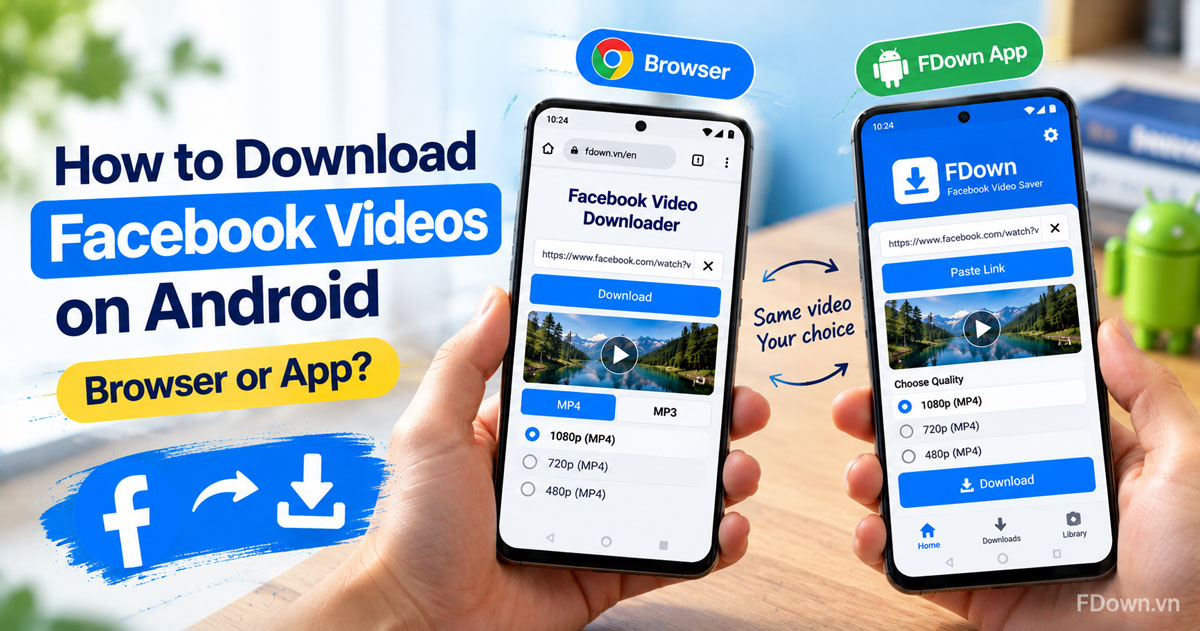
To download Facebook videos on Android, copy the video link in the Facebook app, paste it into a downloader in Chrome and tap Download, or paste the same link into the FDown app if you download often. The browser way needs nothing installed, while the app is an optional shortcut.
The browser method takes 3 steps and works on almost any Android phone: copy the link, paste it into the box on the downloader page, then choose a format and quality. The MP4 file goes straight to the Downloads folder on your phone, and you can play it offline right away.
The app method uses FDown: Facebook Video Saver from Google Play. You paste the link into the app instead of a browser, pick a quality and tap Download, and the video is saved to your gallery and to a Library inside the app. It is free to install, and a paid Premium plan removes ads and daily limits.
Next, this guide covers both methods in detail, then compares them side by side so you can pick the one that fits how often you download. It ends with the most common reasons a download fails on Android and what to do about each one.
Can you download Facebook videos on Android without installing anything?
Yes, you can download Facebook videos on Android without installing anything, because Chrome already on your phone can run a web downloader, you do not need to log in, and the file saves like any other download.
To see why no app is needed, it helps to know what a downloader actually does. It reads the public video from the link you give it and returns the video file in the qualities available. All of that happens on a web page, so your phone only needs a browser. This also means the same steps work on a laptop or a tablet.
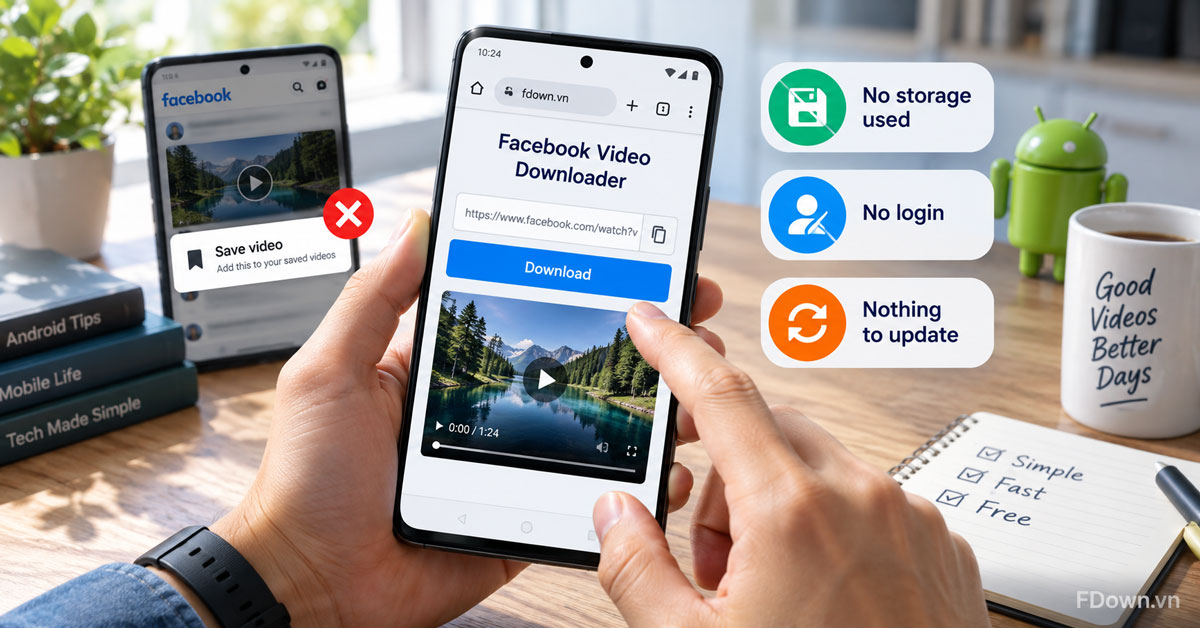
There are three clear benefits to starting with the browser:
- No storage used by another app. Many budget Android phones fill up quickly, and a web page takes no space once you close it.
- No login. FDown does not ask you to sign in with Facebook and does not store personal information.
- Nothing to update. A web tool is always on its latest version when you open it.
Keep in mind that the Save option inside Facebook is not the same thing. It keeps a video in your Saved list so you can watch it later inside Facebook, but it does not create a file on your phone.
What do you need on your Android phone first?
You need four things on your Android phone first: the link to the Facebook video, a browser such as Chrome, a video that is set to public, and enough storage and connection to finish the download.
Specifically, here is what each item means in practice:
- The video link. You copy it from the Share menu in the Facebook app. The steps are below.
- A browser. Chrome is on most Android phones. Edge, Firefox and the browser that came with your phone work too.
- A public video. The link method reaches videos that anyone can open. Videos limited to friends or private groups need a different approach.
- Storage and a stable connection. High quality files are larger, so check your free space, and use Wi-Fi for long videos if your data plan is small.
Does the browser method work on every Android phone?
Yes, the browser method works on practically every Android phone with an up-to-date browser, because the download runs on a web page rather than inside the phone's system.
That said, a few details change from brand to brand. The file manager might be called Files, My Files or File Manager, and the gallery app might group downloads in a folder called Download or Downloads. The steps themselves stay the same. If your browser is very old, update it from Google Play first, since older versions can have trouble opening modern web pages.
How do you download a Facebook video on Android with Chrome?
You download a Facebook video on Android with Chrome in 3 steps: copy the video link, paste it into the downloader and tap Download, then choose a quality, and the MP4 file lands in your Downloads folder.
Here is the full process in one place:
- Copy the link. In the Facebook app, open the video, tap Share and choose Copy link.
- Paste it into the downloader. Open the Facebook video downloader in Chrome, tap the box that says "Paste Facebook video link here..." and paste the link. Tap Download.
- Choose the format and quality. Pick MP4 or MP3 and a quality, then tap Download again. Chrome saves the file.
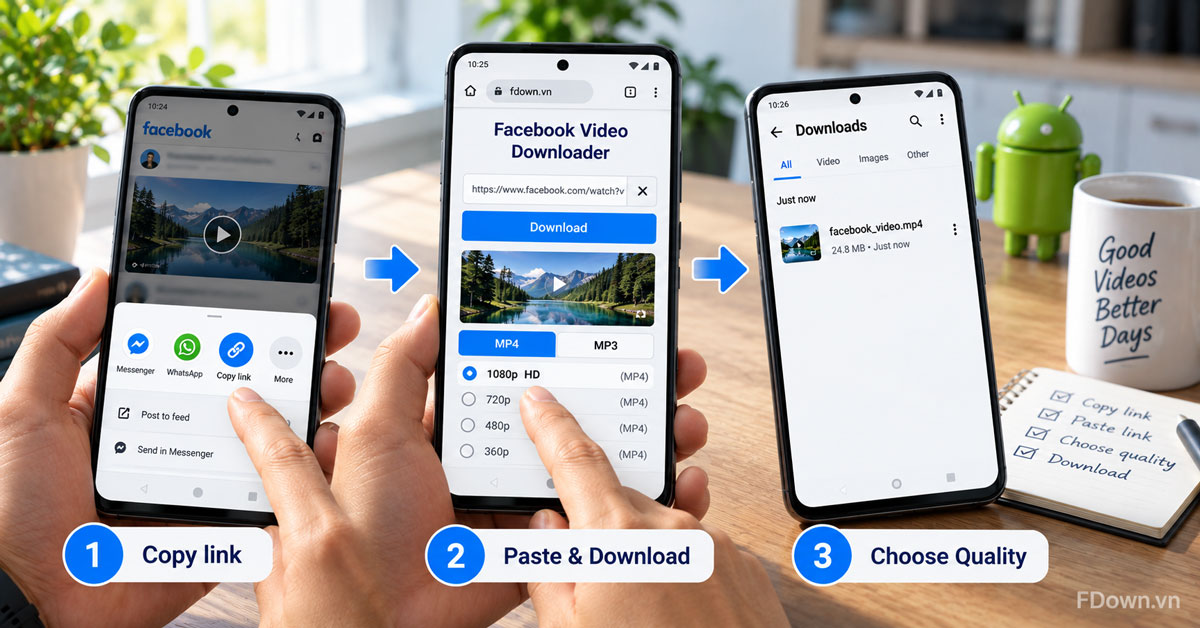
If you prefer Firefox, Edge or another browser, the same link method in other browsers is explained in a separate guide. The sections below go through each Chrome step on Android in more detail.
How do you copy a video link in the Facebook app?
You copy a video link in the Facebook app by opening the video, tapping Share and choosing Copy link, which saves the link to your clipboard.
To avoid copying the wrong post, open the video in full view before you tap Share. The layout of the Share menu can change between versions of the Facebook app, so look for the option labeled Copy link rather than a fixed position on the screen.
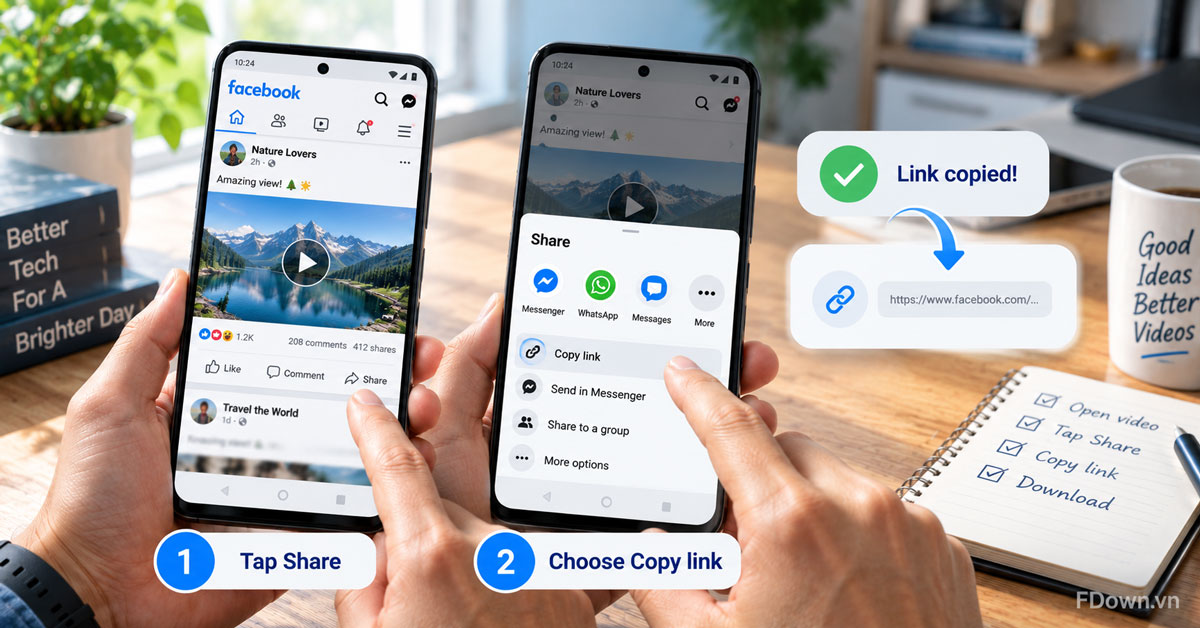
A quick tip: if you watch Facebook in Chrome rather than the app, you can also copy the address from the address bar while the video is open.
How do you paste the link and choose a quality in Chrome?
You paste the link in Chrome by tapping the input box, choosing Paste and tapping Download, then picking a quality such as 1080p or 720p from the list that appears.
After that, the choice of quality is the only decision to make. FDown shows the qualities that exist for that video, such as 1080p, 720p, 540p and 360p, and also 2K or 4K when the original upload has it. Higher qualities take a little longer because the video and its sound are merged into one file before the download starts.
The table below helps you choose a quality on an Android phone.
| Situation | Format | Quality to pick |
|---|---|---|
| Watching on your phone at home | MP4 | 1080p if available |
| Downloading on mobile data | MP4 | 540p or 720p |
| Keeping only the sound of a talk or song | MP3 | Audio only |
Once you tap Download, you can follow the progress in Chrome's Downloads list until the file is complete.
Where do you find the downloaded video on Android?
On Android, the downloaded Facebook video is saved in the Downloads folder, which you can open from Chrome's Downloads list or from the Files app on your phone.
Here are the two fastest ways to reach it:
- In Chrome. Tap the three-dot menu at the top right, then Downloads. If your address bar is at the bottom, swipe up on it and tap Downloads.
- In the Files app. Open Files, or the file manager on your phone, and tap Downloads.
The video can also show up in your gallery app under a Download album. If you want step-by-step help to move a saved Facebook video into your gallery, including Google Photos, there is a separate guide for that.
How do you download Facebook videos with the FDown Android app?
You download Facebook videos with the FDown Android app by installing it from Google Play, pasting a Facebook video link into the app, choosing a quality and tapping Download, and the video is saved to your gallery.
The app follows the same idea as the website, just without opening a browser. FDown built it for people who download videos often. The web version stays fully featured, so installing the app is optional.
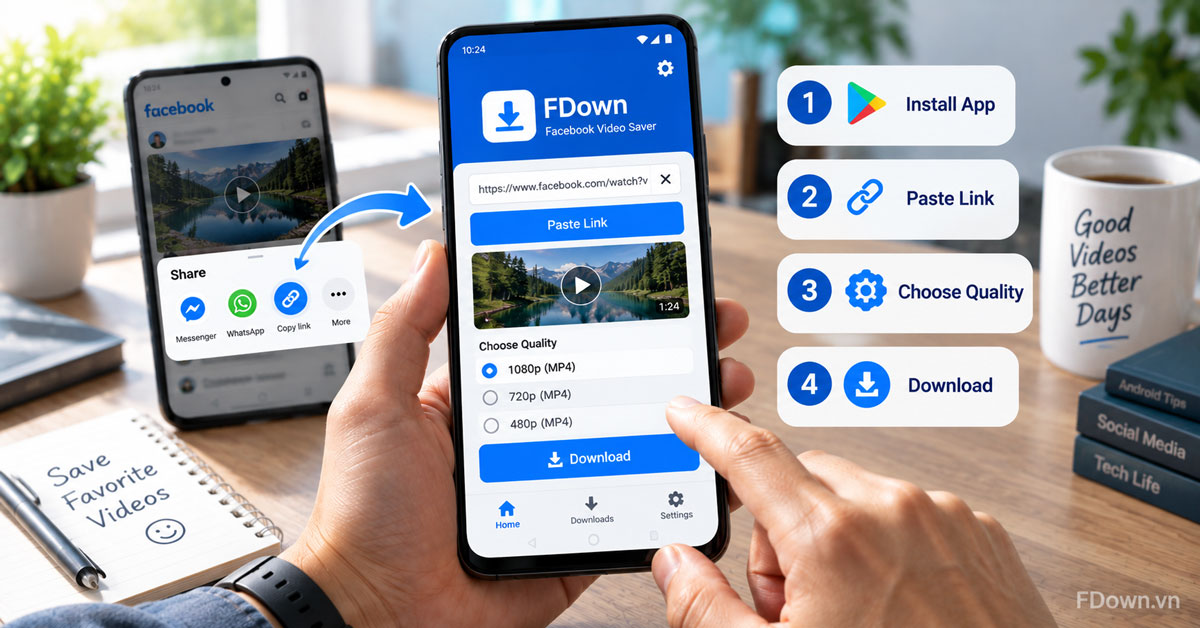
Here are the steps in the app:
- Install FDown: Facebook Video Saver on Google Play and open it.
- Copy a video link from the Facebook app or website.
- Paste the link into FDown.
- Choose a quality and tap Download.
When the download is done, you find the video in your gallery or in the app's Library. The app also has a built-in player to preview a video before saving, can keep downloading in the background while you browse, and lets you share a video to another app in one tap.
How do you install the app safely?
You install the app safely by getting it only from the Google Play Store and checking that the listing name is FDown: Facebook Video Saver before you tap Install.
This matters because searches for Facebook video apps often show APK files hosted on download sites outside Google Play. An APK from an unknown source can be an old version, a modified copy or something harmful dressed up as a video app. Google Play Protect scans apps on your phone, including apps installed from outside the Play Store, and can warn you about or block apps it flags, as explained in the Google Play Protect help page. Even so, the simplest protection is to avoid sideloading a downloader app at all.
A few extra checks help:
- Do not turn on "install unknown apps" for your browser just to get a video downloader.
- Be wary of any app that asks you to log in to Facebook inside it just to download a public video. FDown needs only the link.
- Update the app from Google Play when a new version is available.
What is included for free and what needs Premium?
The free FDown app covers the core job of downloading Facebook videos, reels and stories, while Premium adds no ads, Full HD and 4K on every video, no daily limits and a private Vault.
To make the difference clear, the table below lists the features described on the app's Google Play page.
| Feature | Free app | Premium |
|---|---|---|
| Download Facebook videos, reels and stories | Yes | Yes |
| No login or account needed | Yes | Yes |
| Built-in player, gallery and in-app Library | Yes | Yes |
| Background download and resume | Yes | Yes |
| Ads | Shown | Removed |
| Full HD and 4K on every video | No | Yes |
| Daily download limit | Applies | Removed |
| Vault locked by fingerprint or screen lock | No | Yes |
The app is free to install and contains ads, and Premium is an in-app purchase. If you only save a video now and then, the free app or the website is usually enough.
Browser or app: which way is better for downloading Facebook videos on Android?
The browser wins for occasional downloads because it needs no install and has no daily limit, while the app is better for frequent downloads because it is faster to reach and saves straight to your gallery and Library.
In other words, neither way is better for everyone. They reach the same public videos with the same link, so the choice comes down to how often you download and how much you care about storage and convenience.
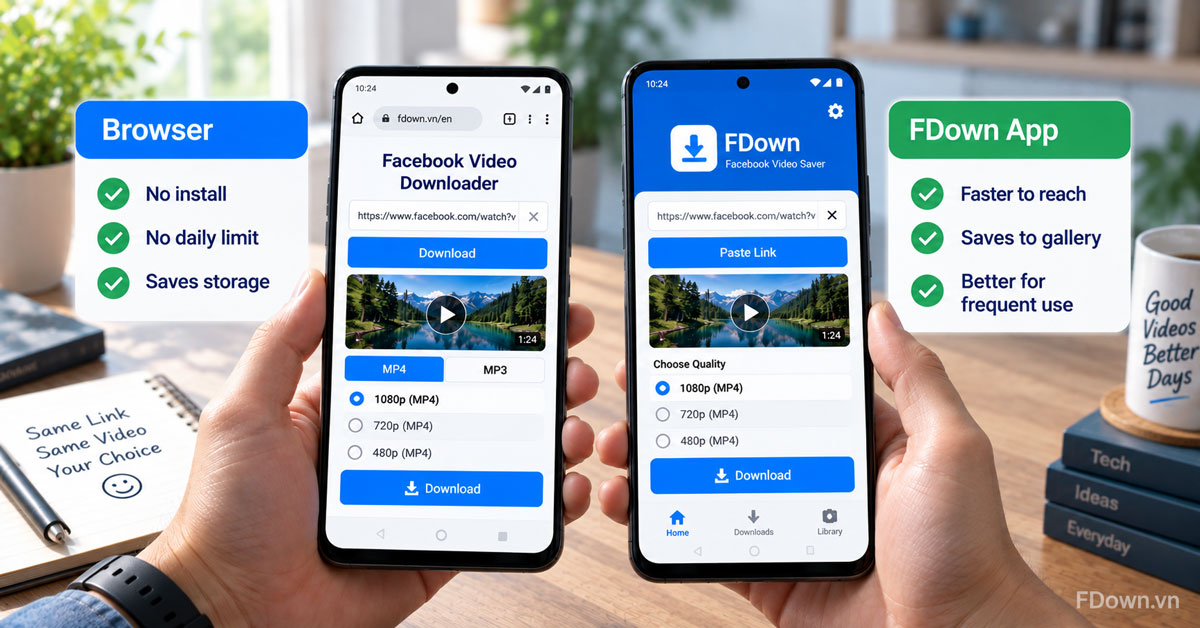
The table below compares the two ways on the points most Android users ask about.
| Point | Browser (Chrome) | FDown app |
|---|---|---|
| Install needed | No | Yes, from Google Play |
| Cost | Free, no registration | Free to install, optional Premium |
| Qualities | 1080p, 720p, 540p, 360p, plus 2K or 4K if the original has it | SD to 4K; Full HD and 4K on every video with Premium |
| Where the file goes | Downloads folder | Gallery and the in-app Library |
| Daily limit | No limit stated | Daily limit on the free plan |
| Best for | Saving a video now and then | Saving videos several times a week |
When is the browser the better choice?
The browser is the better choice in three situations: when your phone is short on storage, when you download only occasionally, and when you do not want another app on your phone.
For example, if you want one cooking video for the weekend or a clip a friend sent in a chat, opening Chrome takes a few seconds and leaves nothing behind. The browser also suits shared or work phones where you cannot install apps, and it is the same method you would use on a computer, so there is nothing new to learn.
When is the app worth installing?
The app is worth installing in three situations: when you download Facebook videos several times a week, when you want videos to appear in your gallery without extra steps, and when you want to keep browsing while a long download finishes.
In those cases, the time saved adds up. The app keeps your downloads in its own Library, and background downloading means you can go back to Facebook while a long video saves. If you often save high quality videos, compare the free plan with Premium, since Full HD and 4K on every video and unlimited daily downloads are part of Premium.
Why is a Facebook video not downloading on your Android phone?
A Facebook video usually fails to download on Android for three reasons: the link is wrong or incomplete, the video is not public, or the internet connection dropped during processing.
Next, check each reason in order, since the first two cover most failed downloads:
- The link is wrong. Copy the link again from the Share menu and paste the full link. Links copied from a notification or a shortened preview often fail.
- The video is not public. If the post is shared with friends only or inside a private group, the public link method cannot reach it. For videos your own account can watch, you can download private Facebook videos with a separate tool.
- The connection dropped. Switch to Wi-Fi or a stronger signal, then try again. High quality videos need a steady connection while the file is prepared.
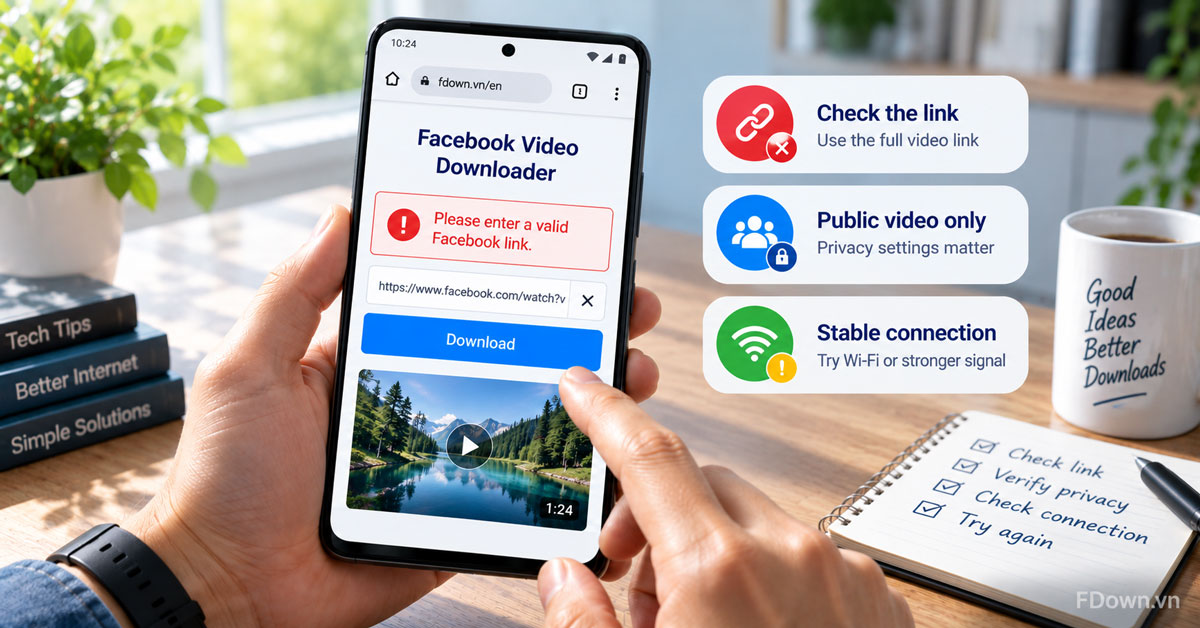
If none of these fixes work, clear the input box, reload the page and paste the link once more. When the error still appears, you can email contact@fdown.vn with the link so the team can check it.
Can you download a Facebook video that is not yours?
Yes, you can download a Facebook video that is not yours if it is public, because anyone can open the link, the downloader uses that same public video, and keeping a copy for personal viewing is the common use.
However, the video still belongs to the person or page that posted it. Downloading it for yourself is different from reusing it. Before you repost, edit or use someone else's video in your own content, ask for permission. If you just want to show a friend, sending the original Facebook link is often the better option because it credits the creator.
What else should Android users know about downloading Facebook videos?
Can you download Facebook Reels and stories on Android the same way?
Yes, you can download Facebook Reels and public stories on Android the same way, by copying the link and pasting it into a downloader or the FDown app.
For Reels, copy the link from the Share menu of the Reel, then paste it in Chrome. If you save Reels often, the page built to download Facebook Reels is designed for that format. For stories, only public stories that are still live can be saved from a link. Stories shared with friends only, or stories that have already expired, cannot be downloaded this way.
How can you save mobile data when downloading videos?
You save mobile data when downloading Facebook videos by choosing a lower quality, downloading long videos on Wi-Fi, and picking MP3 when you only need the sound.
A 540p or 720p MP4 still looks sharp on most phone screens and uses much less data than 1080p, 2K or 4K. If your data plan is small, save big downloads for when you are on Wi-Fi, and delete videos you have already watched to keep storage free.