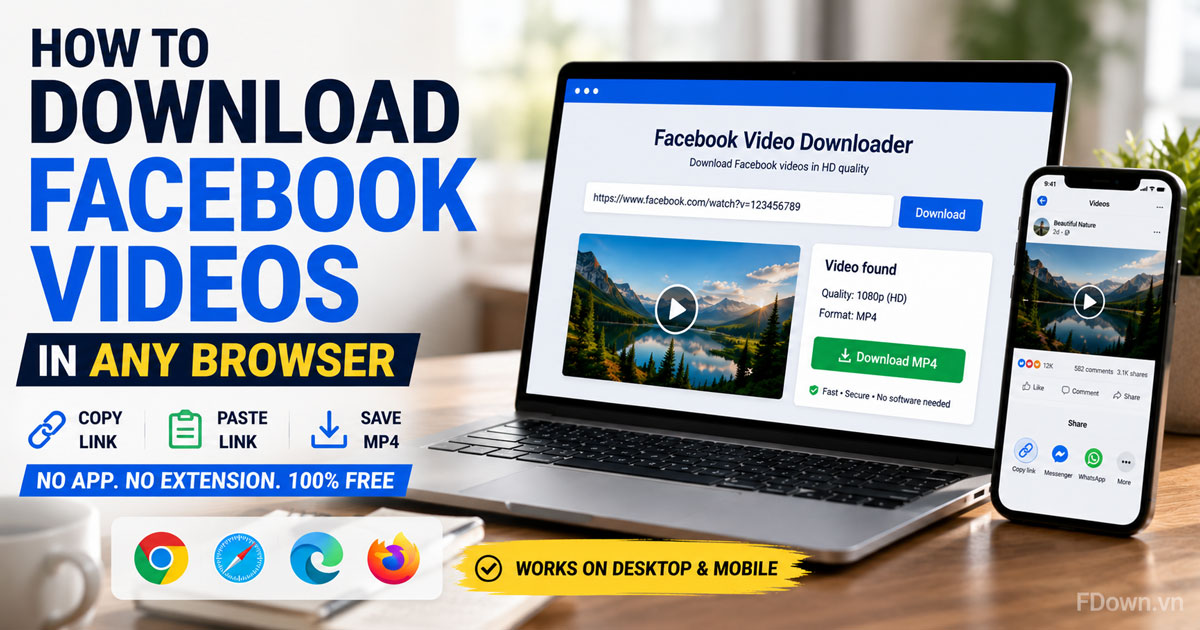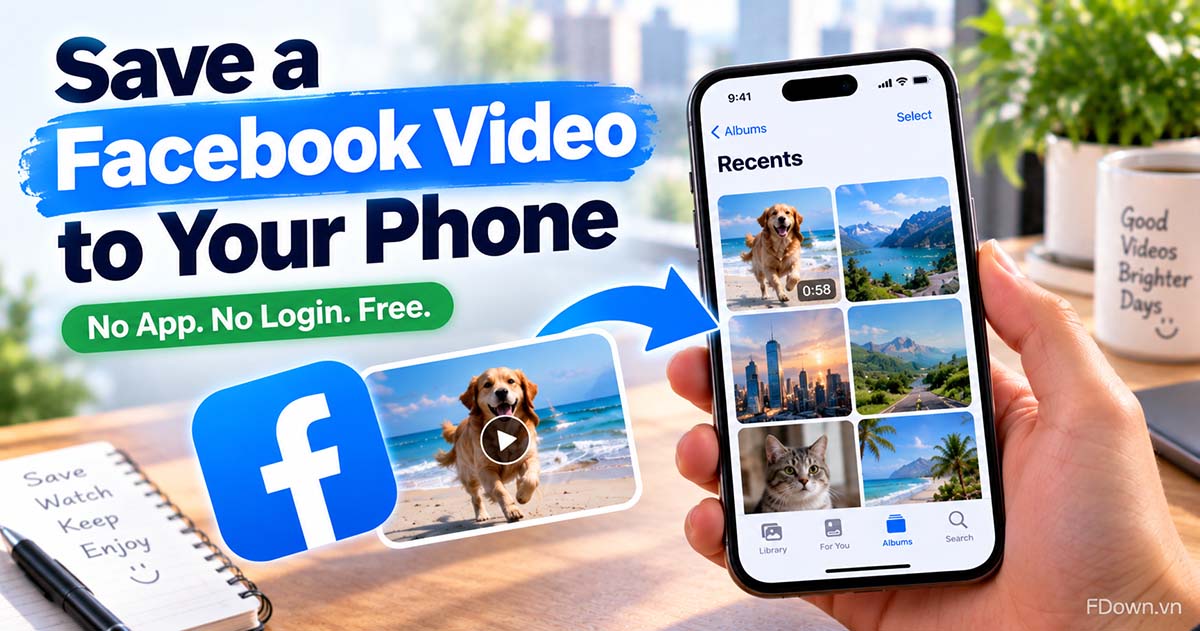
To save a Facebook video to your phone gallery or camera roll, copy the video link, download it as an MP4 file in your phone browser, then open it from Downloads and add it to your gallery or Photos app. The whole process takes a few minutes, needs no extra app and works on both Android phones and iPhones.
Saving the file itself takes just 3 steps: copy the Facebook video link, paste it into a browser-based downloader, then choose a format and quality and tap Download. The video is processed in seconds, and the file lands on your phone as a normal MP4 that any video player can open, even when you are offline.
Moving the video into your gallery depends on your phone. On Android, the file goes to the Downloads folder, and your gallery app or Google Photos can show it from the Download album. On an iPhone, the file goes to the Files app first, and you tap Share, then Save Video to copy it into your camera roll.
Below, this guide walks through each part in order: whether saving to the gallery is possible, the 3 download steps, the Android gallery steps, the iPhone camera roll steps, and how to do it without an app or a Facebook account. Along the way, you will also see what to check when a video does not show up where you expect.
Can you save a Facebook video to your phone gallery?
Yes, you can save a Facebook video to your phone gallery, because a public video can be downloaded as an MP4 file, the file stays on your phone, and gallery apps can play any MP4 stored on the device.
To understand why this works, it helps to separate two things that people often mix up. Facebook lets you keep videos inside the app, but that does not create a file on your phone. A downloader, on the other hand, takes the video link and hands you the actual file, which you can then move, rename, share or play without the internet.
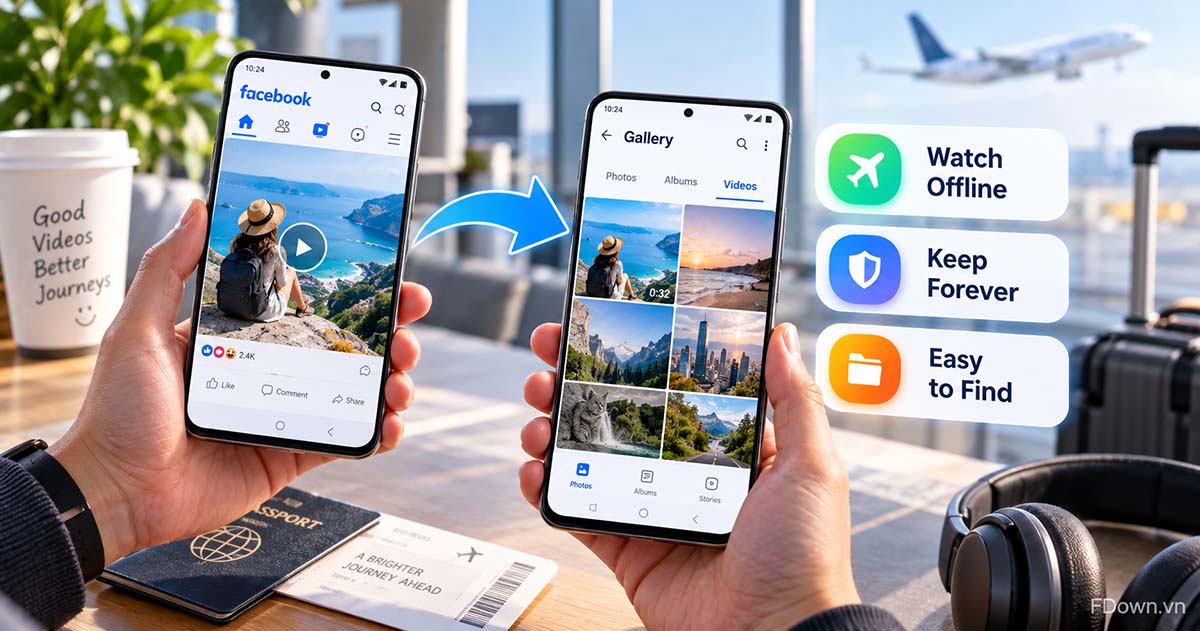
There are three good reasons to save the file instead of relying on the app:
- You can watch it offline. A video in your gallery plays on a flight, on the train or anywhere your data is weak.
- It does not depend on the post. If the owner deletes the post or changes who can see it, a bookmark inside Facebook stops working, while your saved copy for personal use stays on your phone.
- It is easy to find later. Your gallery sorts files by date and album, so the video sits next to your other clips instead of in a long list inside Facebook.
What is the difference between Facebook's Save option and saving to your phone?
Facebook's Save option wins for speed because it is one tap inside the app, while saving to your phone wins for control because you get a real file that works offline and outside Facebook.
In other words, the two features solve different problems. Facebook describes its Save feature as a way to keep things you see on Facebook so you can view them later, and only you can see your saved items unless you add them to a shared collection. The saved video still lives on Facebook's servers. A downloaded video lives in your phone storage.
The table below compares the two options on the points that matter most when you want a video in your gallery.
| Point | Facebook's Save option | Saving the file to your phone |
|---|---|---|
| Where the video lives | In the Saved list inside Facebook | In your phone storage (Downloads, then gallery or Photos) |
| Works offline | No | Yes |
| Shows up in your gallery | No | Yes, after you move or open it |
| Still there if the post is removed | No | Yes |
| Needs an extra tool | No | A browser-based downloader |
So if you only want to rewatch a video later while online, the built-in Save option is enough. If you want the video in your gallery or camera roll, you need to download the file.
What do you need before you save a video?
You need four things before you save a Facebook video: the video link, a mobile browser, a video that is set to public, and enough free storage on your phone.
Next, a quick check of each item saves time later:
- The video link. Every Facebook video has its own link, which you copy from the Share menu. The next section shows exactly where to find it.
- A mobile browser. Chrome, Safari, Edge and Firefox all work. On Android, most people use Chrome; on iPhone, Safari or Chrome.
- A public video. A browser downloader can only reach videos that anyone can open, so check that the post is public before you start.
- Free storage. A long video in high quality can take a lot of space. If your phone is almost full, clear some room first or pick a lower quality.
You do not need a Facebook login on the downloader side, and you do not need to create any account.
How do you save a Facebook video to your phone in 3 steps?
You save a Facebook video to your phone by copying its link, pasting the link into a browser-based downloader and tapping Download, which gives you an MP4 file in your phone storage within seconds.
Here is the short version of the process. It is the same on Android and iPhone, so you only need to learn it once:
- Copy the link and open the tool. In Facebook, tap Share on the video and choose Copy link. Then open the Facebook video downloader in Chrome or Safari on your phone.
- Paste the link. Tap the box that says "Paste Facebook video link here..." and paste the link, then tap Download.
- Choose the format and quality. Pick MP4 for video or MP3 for audio, select a quality and tap Download again. The file is saved to your phone.
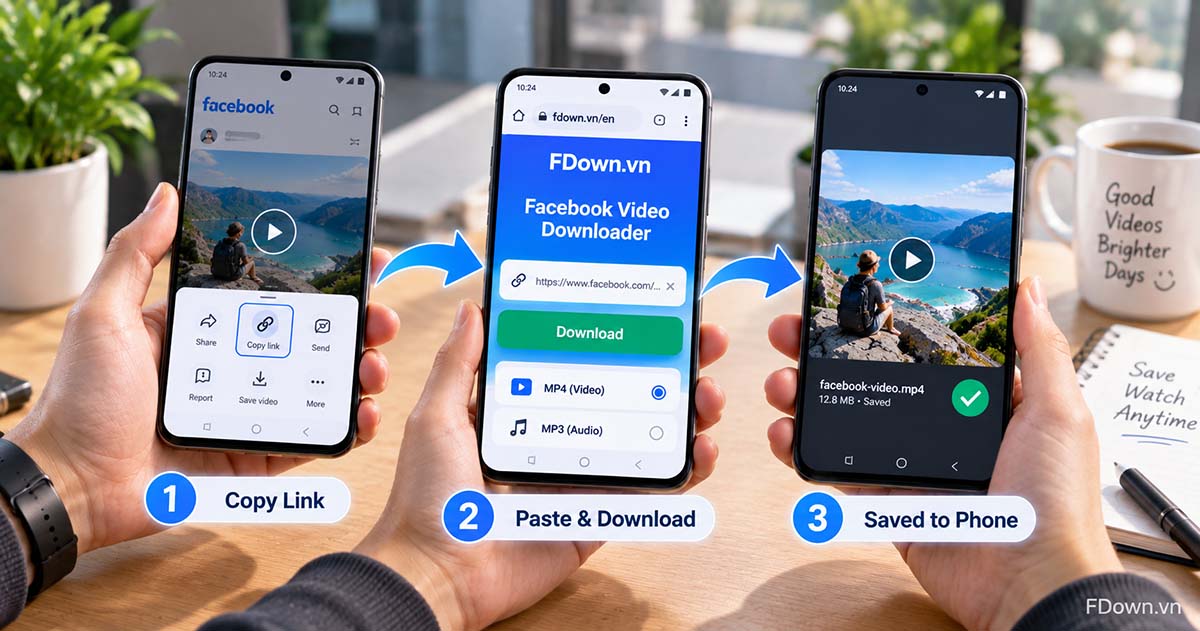
These three steps only get the file onto your phone. If you want more detail on each browser, including desktop Chrome, Edge, Safari and Firefox, the guide to the copy and paste method in any browser covers it step by step. The rest of this article focuses on what happens after the download: getting the video into your gallery or camera roll.
How do you copy the video link on your phone?
You copy a Facebook video link on your phone by opening the video, tapping Share and choosing Copy link, which puts the link on your clipboard ready to paste.
To make this step smooth, open the video itself rather than tapping Share from a small preview in your feed, so you are sure you are copying the right post. After you tap Copy link, Facebook usually shows a short confirmation. Then switch to your browser and paste the link into the downloader box.
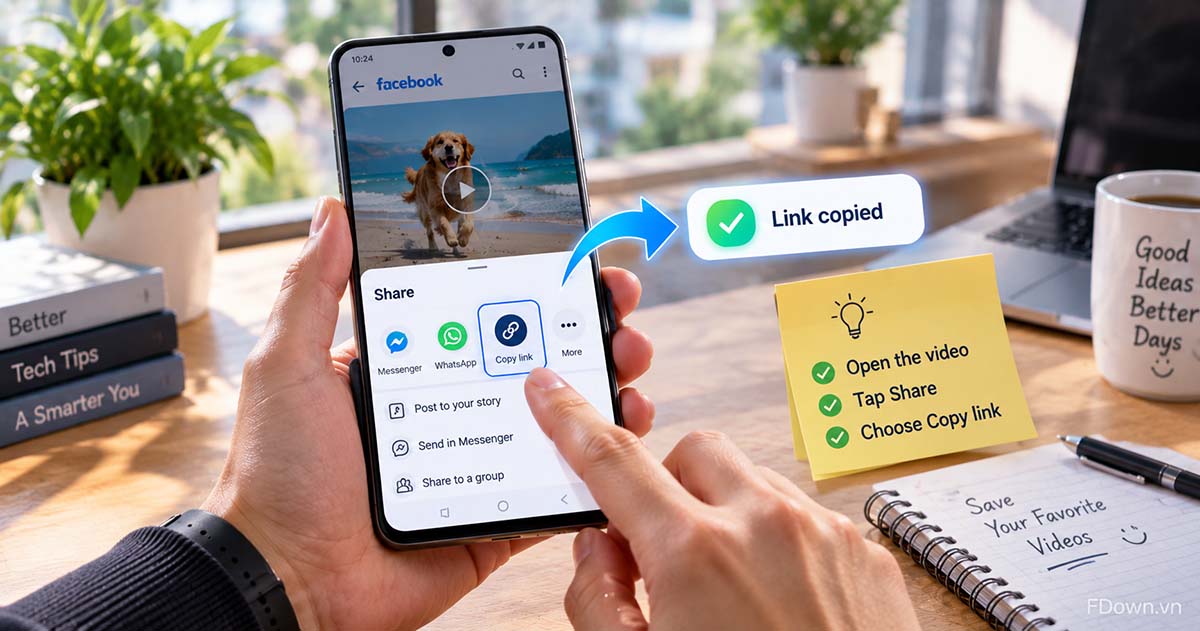
A few tips help avoid errors at this step:
- Copy the full link. A shortened or cut link often fails.
- If the Share menu shows no Copy link option, open the video in a browser and copy the address from the address bar.
- Copy one link at a time. Pasting an old link from your clipboard is a common reason for getting the wrong video.
Which format and quality should you choose for a phone?
MP4 is the right format when you want to watch the video in your gallery, MP3 suits you when you only need the sound, and the quality should match how you plan to watch and how much storage you have.
To choose well, think about the screen and the space. FDown offers qualities such as 1080p, 720p, 540p and 360p, and 2K or 4K when the original video was uploaded at that quality. A higher quality looks sharper on a large screen but creates a bigger file. A lower quality saves storage and downloads faster on mobile data.
The table below gives a simple way to pick a quality for a phone.
| What you want | Format | Suggested quality |
|---|---|---|
| Watch on your phone and keep it for a long time | MP4 | 1080p if available |
| Save space or download on mobile data | MP4 | 720p or 540p |
| Send the clip in a chat app | MP4 | 720p or lower |
| Listen to a song, talk or podcast | MP3 | Audio only |
Keep in mind that a downloader cannot add detail that the original upload never had. If a video was posted in low quality, choosing a higher option will not make it sharper.
How do you move a saved Facebook video into your Android gallery?
You move a saved Facebook video into your Android gallery by opening your gallery app or Google Photos and going to the Download folder, where the MP4 file appears after it finishes downloading.
On most Android phones, there is nothing to copy by hand. The video is already stored on the phone, and the gallery simply needs to show the folder it sits in. The only question is where to look. If you still need help with the download part itself, such as choosing between your browser and an app, the guide to downloading Facebook videos on Android with a browser or the app explains both ways.
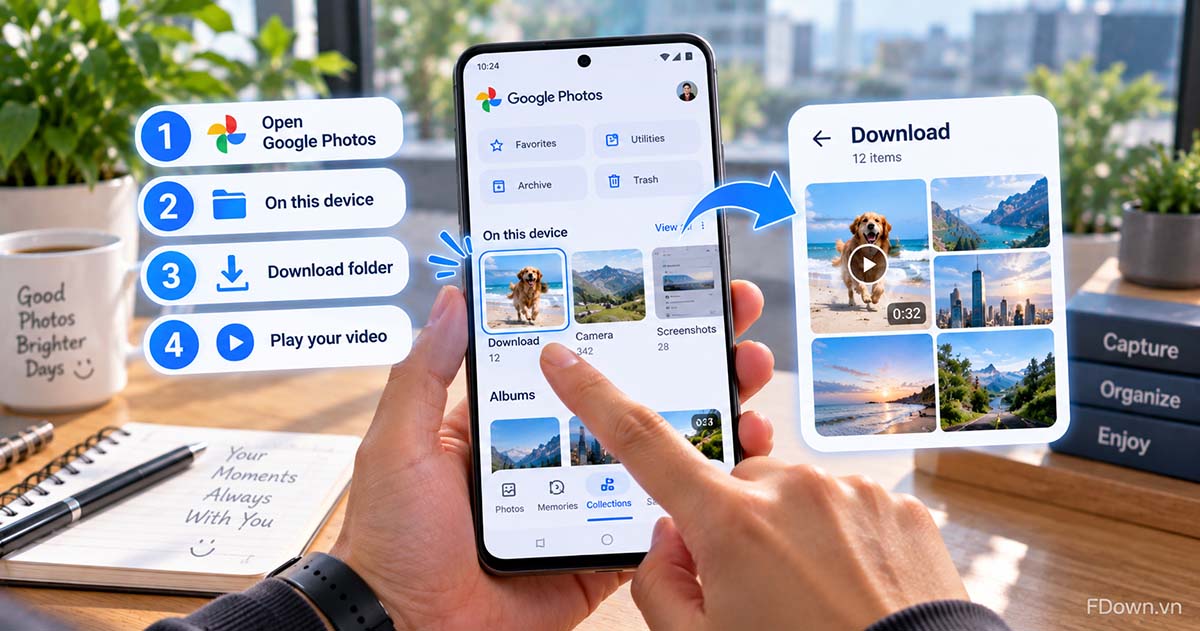
Follow these steps if you use Google Photos, which comes with many Android phones:
- Open the Google Photos app.
- Tap Collections at the bottom of the screen.
- Tap On this device, then open the Download folder.
- Tap the Facebook video to play it, or use the menu to add it to an album.
Google explains this path in its help page on finding items from other apps in Google Photos. If your phone uses its own gallery app instead, look for an album or folder called Download or Downloads. The name and position change from one brand to another, but the folder is there.
Where does the video go on Android after it downloads?
On Android, a downloaded Facebook video goes to the Downloads folder in your phone storage, which you can open from your browser's download list, the Files app or your gallery.
Specifically, there are three quick ways to reach it:
- From Chrome. Tap the three-dot menu at the top right, then Downloads. If your address bar is at the bottom, swipe up on it and tap Downloads.
- From the Files app. Open Files (or the file manager on your phone) and tap Downloads.
- From the notification. When the download finishes, a notification often appears. Tapping it opens the video straight away.
Once you know the video is in Downloads, you can leave it there, move it to another folder, or share it. Your gallery reads the file from the same place, so you do not need to keep two copies.
Why doesn't the video appear in your gallery right away?
A saved Facebook video usually does not appear in your gallery for three reasons: the download has not finished, the gallery only shows camera photos by default, or the gallery has not refreshed its list yet.
For each reason, the fix is simple:
- The download is not finished. High quality videos can take longer, because the video and sound are merged before the file is ready. Check the download list in your browser and wait until it says the download is complete.
- The gallery shows the camera folder first. Many gallery apps open on camera photos. Scroll to your albums or folders and open Download.
- The list has not refreshed. Close the gallery app and open it again. On some phones, new files from other apps appear after a short delay.
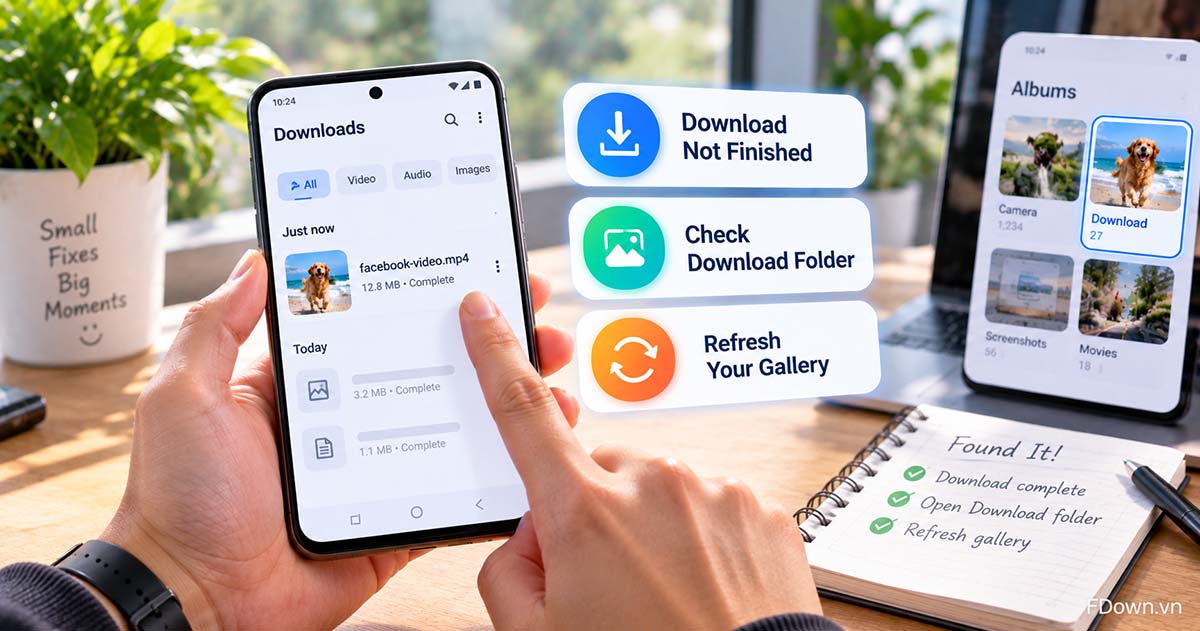
If the file is not in Downloads at all, the download did not start. Go back to the downloader, paste the link again and make sure you tap Download on the quality you want.
How do you save a Facebook video to your iPhone camera roll?
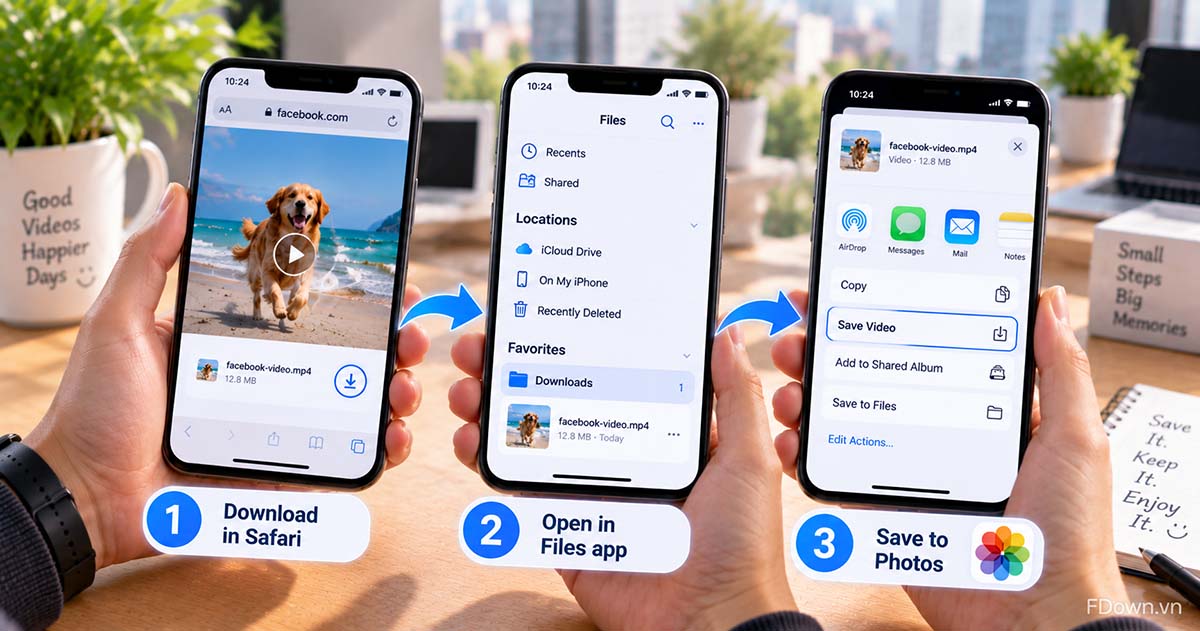
You save a Facebook video to your iPhone camera roll by downloading it in Safari or Chrome, opening the file in the Files app and tapping Share, then Save Video, which copies it into the Photos app.
The extra step exists because of how iPhone handles downloads. Files you download from the web do not go straight to Photos. They go to the Downloads folder in the Files app first. From there, one tap sends the video to your camera roll, where it sits with your other videos.
Where does the file land on an iPhone first?
On an iPhone, a downloaded Facebook video lands in the Downloads folder of the Files app, usually inside iCloud Drive or On My iPhone, depending on your settings.
To find it, you can use either app. In Safari, tap the Downloads button next to the address field to see the list of files you downloaded, then tap the video. In the Files app, tap Browse, open iCloud Drive or On My iPhone, and tap Downloads. Apple lists these paths in its guide on where to find downloads on your iPhone.
If you downloaded the video in Chrome for iPhone, the file is also saved through Files, so the same folder applies.
How do you move the video from Files to Photos?
You move a video from Files to Photos in four taps: open the video, tap Share, choose Save Video, then check the Photos app for the new clip.
Here are the steps in order:
- Open the Files app and go to Downloads.
- Tap the Facebook video to open it.
- Tap the Share button (the square with an arrow pointing up).
- Tap Save Video. On some iOS versions or file types the option can be labeled differently, such as Save to Photos.
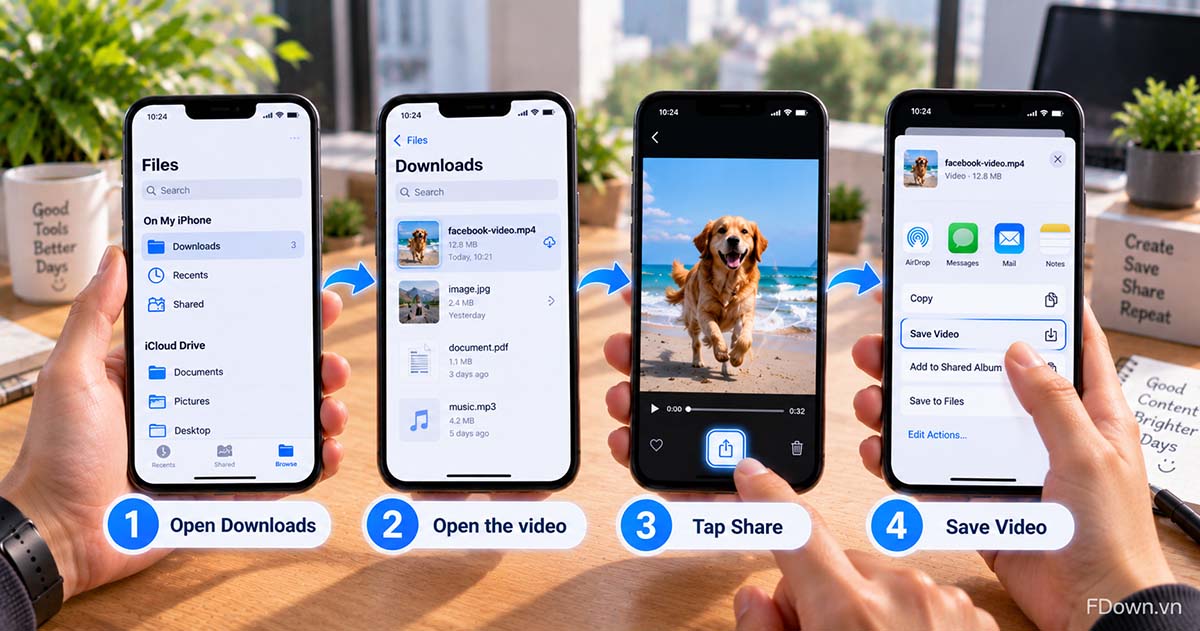
After that, open Photos. The video appears in your library among your most recent items, ready to play, trim or share like any clip you recorded. The original file stays in Files, so you can delete it there if you want to free up space.
Can you save a Facebook video to your phone without an app or an account?
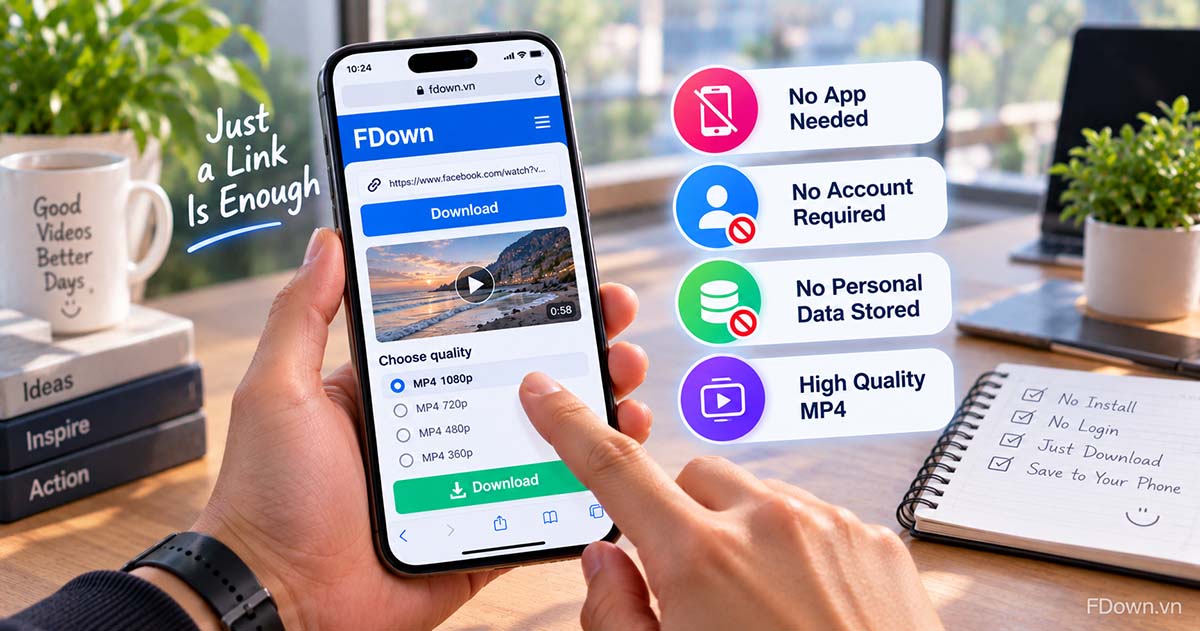
Yes, you can save a Facebook video to your phone without an app or an account, because a browser downloader runs in Chrome or Safari, needs no install, and does not ask for your Facebook login.
That matters for two groups of people. First, anyone whose phone is short on storage can skip installing another app. Second, anyone who does not use Facebook, or does not want to connect their account to a third-party tool, can still save a public video from a link someone shared with them.
On FDown, the process uses only the link. The site does not ask you to sign in with Facebook, does not require registration and does not store personal information. It also does not add any watermark or logo of its own to the file. If a video already shows a creator's mark, that mark was part of the original video, and a downloader cannot remove it.
Can you save a Facebook video someone else posted?
Yes, you can save a Facebook video someone else posted if it is public, because the link opens for anyone, the downloader reads the same public file, and saving it for personal viewing is how most people use this.
However, being able to save a video does not give you the right to reuse it. The person or page that posted the video owns it. Keep the file for yourself, and ask the owner for permission before you upload it elsewhere, edit it into your own content or use it commercially. When in doubt, share the original Facebook link instead of the file.
If a video is visible only to friends or group members, the public method will not work, so use the private Facebook video downloader for videos your own account can already watch.
For everything else, public videos are the simple path: copy the link, use FDown's free Facebook downloader, and move the file into your gallery or camera roll as shown above.
What else should you know about keeping Facebook videos on your phone?
Can you back up saved Facebook videos automatically?
Yes, on Android you can back up saved Facebook videos automatically with Google Photos by turning on backup for the Download folder.
By default, Google Photos backs up your camera photos, while other folders need to be switched on. Open Google Photos, tap your profile picture, go to Photos settings, then Backup, and tap Back up device folders. Turn on the Download folder, and new videos saved there will be copied to your Google account when backup runs.
This is useful if you change phones often, but remember that backups count toward your cloud storage. On iPhone, videos you move into Photos follow your normal iCloud Photos setting.
Can you save only the audio from a Facebook video?
Yes, you can save only the audio from a Facebook video by choosing MP3 instead of MP4 in the last download step.
An MP3 file is much smaller than a video, so it suits talks, recitations, songs and podcasts you want to hear rather than watch. The file does not go into your gallery because it has no picture. On Android it stays in Downloads and your music or file app can play it. On iPhone it stays in the Files app, where you can play it directly.